> ## Documentation Index
> Fetch the complete documentation index at: https://docs.getoneprofile.ai/llms.txt
> Use this file to discover all available pages before exploring further.
# LinkedIn steps
> Install the browser extension, connect a sender's LinkedIn account, and add LinkedIn steps to a sequence.
A sequence can act on LinkedIn as well as email. Those steps run in your own browser through the Oneprofile extension, using the LinkedIn account you are already signed in to.
 These steps need a LinkedIn account paired first. See [Connect LinkedIn](/outreach/connect-linkedin).
## Add a LinkedIn step
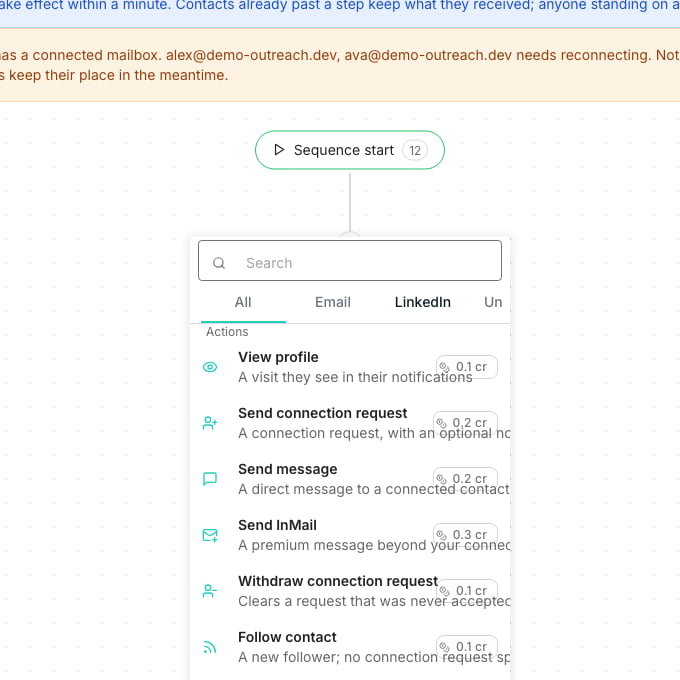
On the **Builder** tab, open the step picker on any connector and choose the **LinkedIn** tab. The actions are **View profile**, **Send connection request**, **Send message**, **Send InMail**, **Withdraw connection request**, **Follow contact** and **Like latest post**, each priced per row.
## Good to know
**How it runs** under **Safety limits** decides whether queued actions go out on their own.
On **Auto**, connection requests, messages and InMails send from your own LinkedIn account without you watching. Start on **Manual** until you trust the sequence.
**Safety limits** sets a ceiling per day and per action, and the panel counts connection requests for the week. Lower is safer: LinkedIn polices volume on its own terms and the limits exist to keep you under its radar, not ours.
The picker's LinkedIn tab also carries conditions: **Has a LinkedIn URL?**, **Already connected?**, **Connection request accepted?** and **Has open profile?**. Use them to skip a step rather than waste it.
**LinkedIn identity** is the account a sender is bound to, and **LinkedIn today / daily cap** is how much of today's allowance that sender has used.
It works through the session your browser already holds. There is no password or cookie to hand over, and disconnecting it stops the queue without touching your LinkedIn account.
## Next steps
Put those steps in order alongside email.
Pair the extension, and watch the queue it runs.
Set up the sender the LinkedIn account belongs to.
These steps need a LinkedIn account paired first. See [Connect LinkedIn](/outreach/connect-linkedin).
## Add a LinkedIn step
On the **Builder** tab, open the step picker on any connector and choose the **LinkedIn** tab. The actions are **View profile**, **Send connection request**, **Send message**, **Send InMail**, **Withdraw connection request**, **Follow contact** and **Like latest post**, each priced per row.
## Good to know
**How it runs** under **Safety limits** decides whether queued actions go out on their own.
On **Auto**, connection requests, messages and InMails send from your own LinkedIn account without you watching. Start on **Manual** until you trust the sequence.
**Safety limits** sets a ceiling per day and per action, and the panel counts connection requests for the week. Lower is safer: LinkedIn polices volume on its own terms and the limits exist to keep you under its radar, not ours.
The picker's LinkedIn tab also carries conditions: **Has a LinkedIn URL?**, **Already connected?**, **Connection request accepted?** and **Has open profile?**. Use them to skip a step rather than waste it.
**LinkedIn identity** is the account a sender is bound to, and **LinkedIn today / daily cap** is how much of today's allowance that sender has used.
It works through the session your browser already holds. There is no password or cookie to hand over, and disconnecting it stops the queue without touching your LinkedIn account.
## Next steps
Put those steps in order alongside email.
Pair the extension, and watch the queue it runs.
Set up the sender the LinkedIn account belongs to.