> ## Documentation Index
> Fetch the complete documentation index at: https://docs.getoneprofile.ai/llms.txt
> Use this file to discover all available pages before exploring further.
# Inbox
> Find a reply, answer it yourself or with an AI draft, and approve every draft before it sends.
Every reply to your sequences lands in the inbox, on email and on LinkedIn. A reply stops the contact being emailed, so this is where a sequence hands the conversation back to you.
 ## Find the reply you need
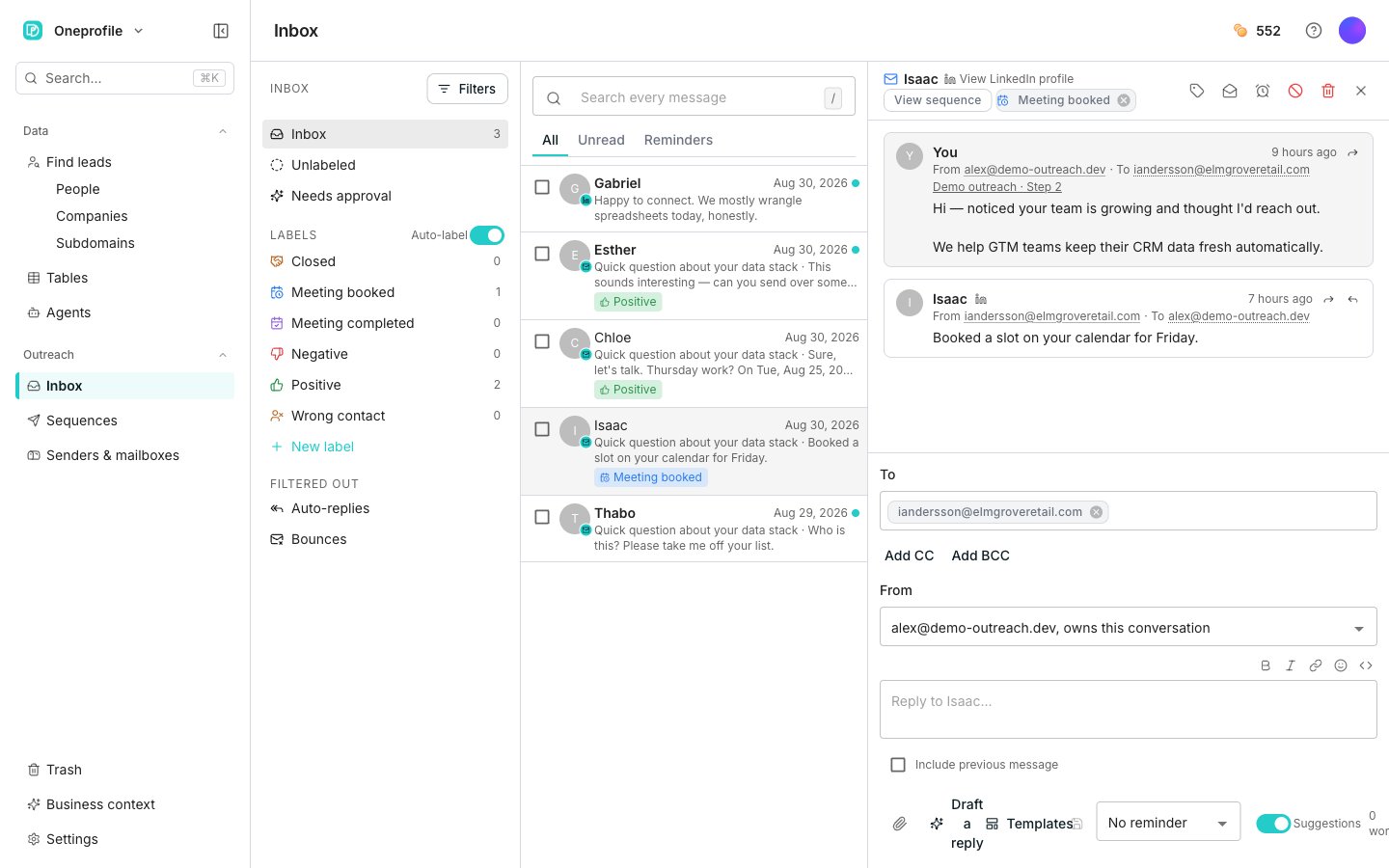
The rail on the left picks which collection you work through. **Inbox** holds every real conversation. **Unlabeled** holds replies nobody has described yet, and **Needs approval** holds AI-written replies waiting on a human.
Under **Filtered out** sit **Auto-replies** and **Bounces**, so neither clutters the inbox. An automatic reply never stops a sequence. A hard bounce stops the contact being emailed at all.
Three tabs above the list slice whatever the rail selected: **All**, **Unread**, and **Reminders**.
## Reply to a conversation
Click it in the list. Its messages fill the reader, with the reply box underneath.
Type in the box. **Templates** inserts a saved reply, and the **Suggestions** switch finishes your sentences as you type.
Click **Send reply**. On a wide screen the button names the address it sends from instead.
## Let AI Assistant draft a reply
Click **Draft a reply** below the reply box. Add an optional steer, then click **Generate**.
The draft takes the reply box's place, with a confidence meter and a line saying how closely to read it.
Edit the text in place, or type a new steer and click **Regenerate**. Once you edit, **Show original** and **Restore original** appear.
Click **Approve and send**. **Skip for now** keeps the draft for next time, and **Discard** throws it away.
A draft never sends itself from this card. It waits for **Approve and send**, and **Needs approval** is where drafts queue up until someone gets to them.
Asking for a draft spends credits from your balance. The **AI Assistant** dialog says so before you click **Generate**.
## Good to know
Each sequence carries a **Reply mode** on its **Settings** tab.
* **Workspace default**: follow whatever reply mode the workspace is set to
* **Reply as human**: no AI drafts, every reply is written by a person
* **Co-pilot**: a draft for every inbound message, held until someone approves, edits or discards it
* **Auto-pilot**: high-confidence drafts send without review, and anything the model is unsure about still waits for you
Click **Filters** at the top of the rail. It offers three fields: **Sequence**, **Mailbox**, and **Sender profile**.
Each field has an **Is** and an **Isn't** tab. **Is** keeps one value, **Isn't** leaves a set of them out. The button counts your active filters, and the cross beside it clears them all at once.
The rail's **Labels** section lists your labels, and clicking one shows only its conversations. Use **Labels** in a thread's header to tag the conversation you are reading, or to create a new label.
The **Auto-label** switch sits beside the heading. On, it reads each new reply and applies one of the built-in labels, but only when it is highly confident. Off, new replies wait in **Unlabeled** until a person describes them.
Uncertain replies stay in **Unlabeled** either way. The switch decides whether the confident ones get labeled for you.
Click **Snooze** in a thread's header and pick a preset, or **Pick a date and time…** for something specific. The conversation waits in **Reminders** and comes back at its time. A new reply brings it back immediately, and **Cancel snooze** undoes it.
The reply box has its own version. Set **If no reply** before you send, and the conversation returns to you if nobody answers by then. It is off by default, and an inbound reply clears it.
Click **Forward this message** on the message you want to pass on, then enter one or more addresses and an optional note.
A forward goes out as a new email, not inside this conversation. A reply to it comes back to you, never to the contact, and any attachments come along. You cannot forward to the contact's own address.
Both live in the thread's header. **Do not contact** opens **Never contact this person again?**, which lists the active sequences it stops before you confirm.
**Delete thread** removes the conversation and its messages from Oneprofile. The contact, their sequence, and the do-not-contact list are untouched. A new reply starts a fresh conversation.
Neither can be undone from the inbox. Read what each dialog says it changes before you confirm.
The send button reads **Queue on LinkedIn** instead of **Send reply**. The message goes from your own LinkedIn account, so it leaves the next time your browser is online with the extension running.
A LinkedIn message is always plain, so the formatting toolbar is hidden. When a conversation has both an email address and a LinkedIn identity, you can choose which one to answer on.
## Next steps
Set the goal and reply mode the drafts are written from.
Invite the people who will work the inbox with you.
## Find the reply you need
The rail on the left picks which collection you work through. **Inbox** holds every real conversation. **Unlabeled** holds replies nobody has described yet, and **Needs approval** holds AI-written replies waiting on a human.
Under **Filtered out** sit **Auto-replies** and **Bounces**, so neither clutters the inbox. An automatic reply never stops a sequence. A hard bounce stops the contact being emailed at all.
Three tabs above the list slice whatever the rail selected: **All**, **Unread**, and **Reminders**.
## Reply to a conversation
Click it in the list. Its messages fill the reader, with the reply box underneath.
Type in the box. **Templates** inserts a saved reply, and the **Suggestions** switch finishes your sentences as you type.
Click **Send reply**. On a wide screen the button names the address it sends from instead.
## Let AI Assistant draft a reply
Click **Draft a reply** below the reply box. Add an optional steer, then click **Generate**.
The draft takes the reply box's place, with a confidence meter and a line saying how closely to read it.
Edit the text in place, or type a new steer and click **Regenerate**. Once you edit, **Show original** and **Restore original** appear.
Click **Approve and send**. **Skip for now** keeps the draft for next time, and **Discard** throws it away.
A draft never sends itself from this card. It waits for **Approve and send**, and **Needs approval** is where drafts queue up until someone gets to them.
Asking for a draft spends credits from your balance. The **AI Assistant** dialog says so before you click **Generate**.
## Good to know
Each sequence carries a **Reply mode** on its **Settings** tab.
* **Workspace default**: follow whatever reply mode the workspace is set to
* **Reply as human**: no AI drafts, every reply is written by a person
* **Co-pilot**: a draft for every inbound message, held until someone approves, edits or discards it
* **Auto-pilot**: high-confidence drafts send without review, and anything the model is unsure about still waits for you
Click **Filters** at the top of the rail. It offers three fields: **Sequence**, **Mailbox**, and **Sender profile**.
Each field has an **Is** and an **Isn't** tab. **Is** keeps one value, **Isn't** leaves a set of them out. The button counts your active filters, and the cross beside it clears them all at once.
The rail's **Labels** section lists your labels, and clicking one shows only its conversations. Use **Labels** in a thread's header to tag the conversation you are reading, or to create a new label.
The **Auto-label** switch sits beside the heading. On, it reads each new reply and applies one of the built-in labels, but only when it is highly confident. Off, new replies wait in **Unlabeled** until a person describes them.
Uncertain replies stay in **Unlabeled** either way. The switch decides whether the confident ones get labeled for you.
Click **Snooze** in a thread's header and pick a preset, or **Pick a date and time…** for something specific. The conversation waits in **Reminders** and comes back at its time. A new reply brings it back immediately, and **Cancel snooze** undoes it.
The reply box has its own version. Set **If no reply** before you send, and the conversation returns to you if nobody answers by then. It is off by default, and an inbound reply clears it.
Click **Forward this message** on the message you want to pass on, then enter one or more addresses and an optional note.
A forward goes out as a new email, not inside this conversation. A reply to it comes back to you, never to the contact, and any attachments come along. You cannot forward to the contact's own address.
Both live in the thread's header. **Do not contact** opens **Never contact this person again?**, which lists the active sequences it stops before you confirm.
**Delete thread** removes the conversation and its messages from Oneprofile. The contact, their sequence, and the do-not-contact list are untouched. A new reply starts a fresh conversation.
Neither can be undone from the inbox. Read what each dialog says it changes before you confirm.
The send button reads **Queue on LinkedIn** instead of **Send reply**. The message goes from your own LinkedIn account, so it leaves the next time your browser is online with the extension running.
A LinkedIn message is always plain, so the formatting toolbar is hidden. When a conversation has both an email address and a LinkedIn identity, you can choose which one to answer on.
## Next steps
Set the goal and reply mode the drafts are written from.
Invite the people who will work the inbox with you.