> ## Documentation Index
> Fetch the complete documentation index at: https://docs.getoneprofile.ai/llms.txt
> Use this file to discover all available pages before exploring further.
# Email steps
> Write the email a step sends, preview it against a real row, and send yourself a test before anyone else gets it.
An email step is a subject and a message, merged per contact the moment it sends. Open its composer to write it, preview it against a real row, and send yourself a test first.
 ## Write the message
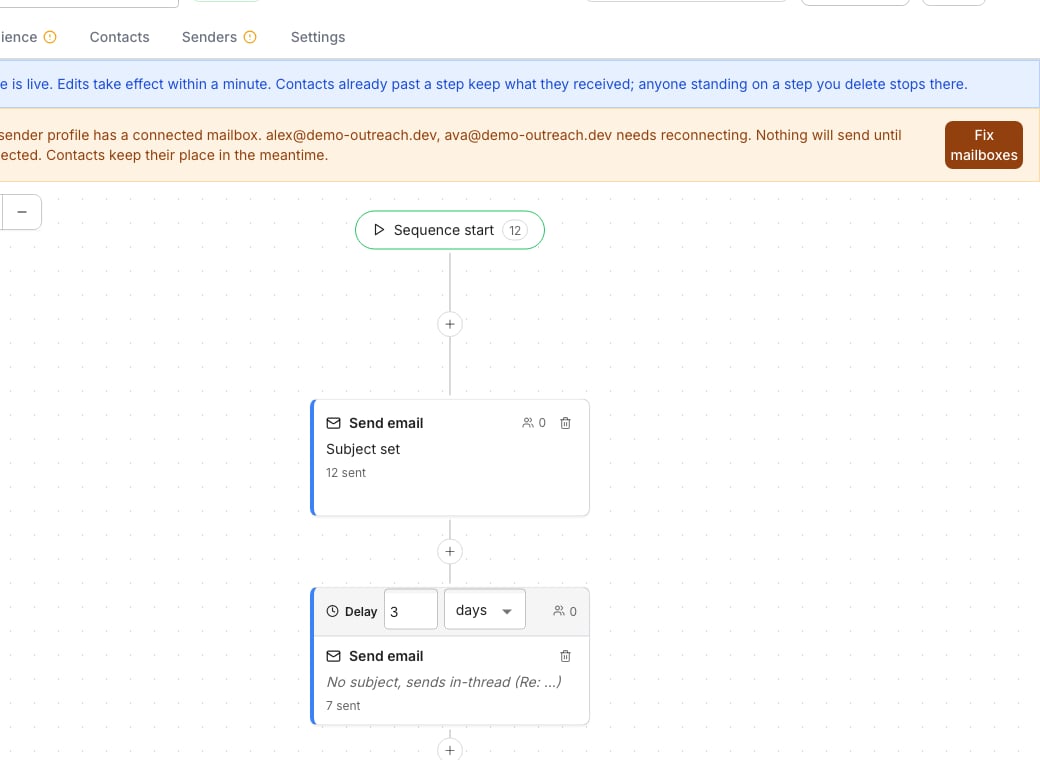
Click a step on the canvas to open its composer. Leave the subject blank on any step after the first and the message sends in the same thread as the one before it. Formatting pasted in from elsewhere is stripped, so use the toolbar for bold, italic and links.
**Spam check** scans the current draft and highlights risky phrases right in the message, with a reason for each one.
## Preview and send a test
Step through real contacts with the arrows and read the message exactly as each one would receive it.
Click **Write a different message for this contact** to override just that row. An **Edited for this contact** chip marks it afterward, with **Revert to template** beside it.
Click **Send preview**, pick a mailbox and a contact, then **Send test**. It costs no credits and appears in no analytics.
## Good to know
It sends inside the same email thread as the step before it, the way a real reply would.
**Spam check** looks for phrases known to trigger filters. The counts above the message, for variables, words, links and emojis, are always on and need no click.
LinkedIn messages send as plain text, so the formatting toolbar only appears on email steps.
Yes. The message field's toolbar has a button that opens the generated HTML source, which you can copy but not edit directly.
## Next steps
Drop in a column's value or vary the wording between sends.
Save this message to reuse it, or start from one already written.
## Write the message
Click a step on the canvas to open its composer. Leave the subject blank on any step after the first and the message sends in the same thread as the one before it. Formatting pasted in from elsewhere is stripped, so use the toolbar for bold, italic and links.
**Spam check** scans the current draft and highlights risky phrases right in the message, with a reason for each one.
## Preview and send a test
Step through real contacts with the arrows and read the message exactly as each one would receive it.
Click **Write a different message for this contact** to override just that row. An **Edited for this contact** chip marks it afterward, with **Revert to template** beside it.
Click **Send preview**, pick a mailbox and a contact, then **Send test**. It costs no credits and appears in no analytics.
## Good to know
It sends inside the same email thread as the step before it, the way a real reply would.
**Spam check** looks for phrases known to trigger filters. The counts above the message, for variables, words, links and emojis, are always on and need no click.
LinkedIn messages send as plain text, so the formatting toolbar only appears on email steps.
Yes. The message field's toolbar has a button that opens the generated HTML source, which you can copy but not edit directly.
## Next steps
Drop in a column's value or vary the wording between sends.
Save this message to reuse it, or start from one already written.