> ## Documentation Index
> Fetch the complete documentation index at: https://docs.getoneprofile.ai/llms.txt
> Use this file to discover all available pages before exploring further.
# Connect LinkedIn
> Install the browser extension, pair a sender's LinkedIn account, and watch the queue of actions it runs for you.
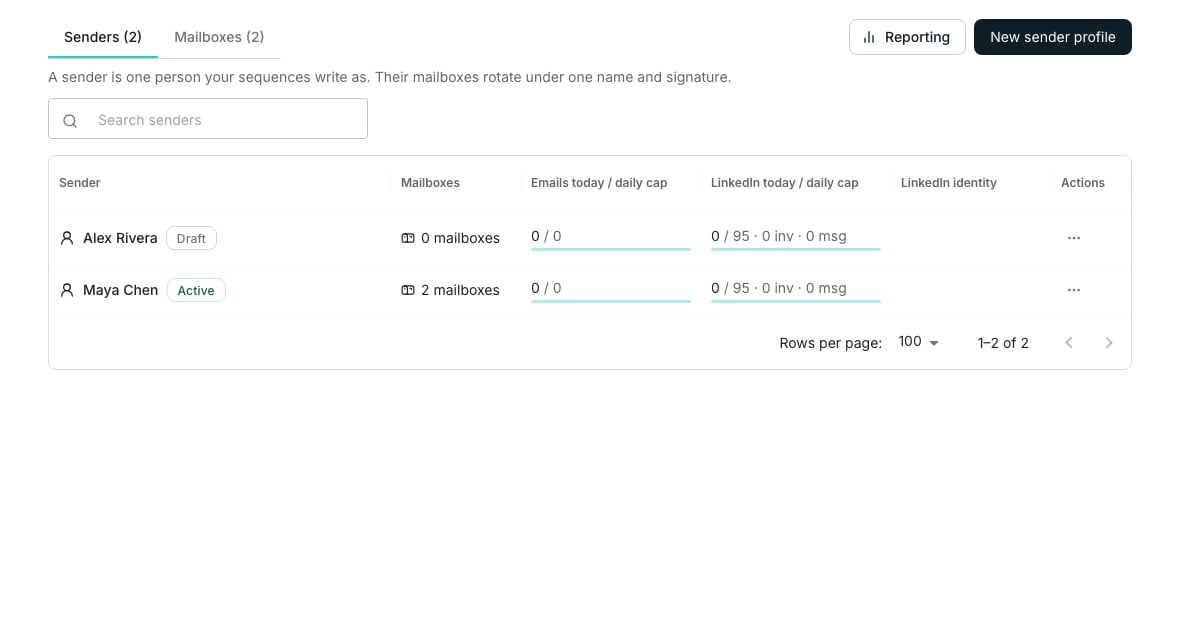
Pair a sender's LinkedIn account with the Oneprofile browser extension so a sequence can view profiles, send connection requests and message people from it. Every action runs inside the sender's own browser, on their own connection, and Oneprofile never asks for their password.
 ## Pair the extension
From Senders & mailboxes, open the sender and switch to the **LinkedIn** tab.
Click **Install the extension** and add it from the store, then click **I've installed it**. It needs Chrome, Edge or another Chromium browser.
Click **Connect LinkedIn** and approve the pairing in the browser that opens. No password is ever asked for.
## Watch and manage the queue
The queue lists every step waiting to run, in order, with its target and a preview of the note or message. Anything not already running can be cleared with its trash icon, which removes just that step from the queue.
Below the queue sit the safety limits, and under those a history grid counts what has run so far and how long each step took. If LinkedIn asks the account to verify itself, a banner pauses everything until that check is completed in the browser.
**Pause** stops the account taking any more steps; **Resume** starts it again. The **Today** panel tracks how much of each daily limit, and the weekly connection-request cap, is already used.
## Good to know
Yes. Steps run in the sender's own browser, so the status bar shows **Extension offline** whenever that browser is closed, and queued steps wait until it reopens.
On the same **LinkedIn** tab, under **Safety limits**. Each action, like **Connection requests a day** or **Messages a day**, has its own ceiling, plus a **Connection requests a week** cap.
The account pauses itself and a verification page opens in the sender's browser. Complete it there, then resume from the status bar.
No. Only steps still waiting in the queue carry a remove button; one already running finishes on its own.
## Next steps
Add profile views, connection requests and messages to a sequence.
Create the sender profile a LinkedIn account belongs to.
## Pair the extension
From Senders & mailboxes, open the sender and switch to the **LinkedIn** tab.
Click **Install the extension** and add it from the store, then click **I've installed it**. It needs Chrome, Edge or another Chromium browser.
Click **Connect LinkedIn** and approve the pairing in the browser that opens. No password is ever asked for.
## Watch and manage the queue
The queue lists every step waiting to run, in order, with its target and a preview of the note or message. Anything not already running can be cleared with its trash icon, which removes just that step from the queue.
Below the queue sit the safety limits, and under those a history grid counts what has run so far and how long each step took. If LinkedIn asks the account to verify itself, a banner pauses everything until that check is completed in the browser.
**Pause** stops the account taking any more steps; **Resume** starts it again. The **Today** panel tracks how much of each daily limit, and the weekly connection-request cap, is already used.
## Good to know
Yes. Steps run in the sender's own browser, so the status bar shows **Extension offline** whenever that browser is closed, and queued steps wait until it reopens.
On the same **LinkedIn** tab, under **Safety limits**. Each action, like **Connection requests a day** or **Messages a day**, has its own ceiling, plus a **Connection requests a week** cap.
The account pauses itself and a verification page opens in the sender's browser. Complete it there, then resume from the status bar.
No. Only steps still waiting in the queue carry a remove button; one already running finishes on its own.
## Next steps
Add profile views, connection requests and messages to a sequence.
Create the sender profile a LinkedIn account belongs to.