> ## Documentation Index
> Fetch the complete documentation index at: https://docs.getoneprofile.ai/llms.txt
> Use this file to discover all available pages before exploring further.
# Connect a mailbox
> Connect the email accounts your sequences send from, import inboxes in bulk, and keep an eye on their health and daily capacity.
A sequence sends through a connected mailbox, so connect at least one before you launch. Mailboxes live on the **Mailboxes** tab of the **Senders & mailboxes** page.
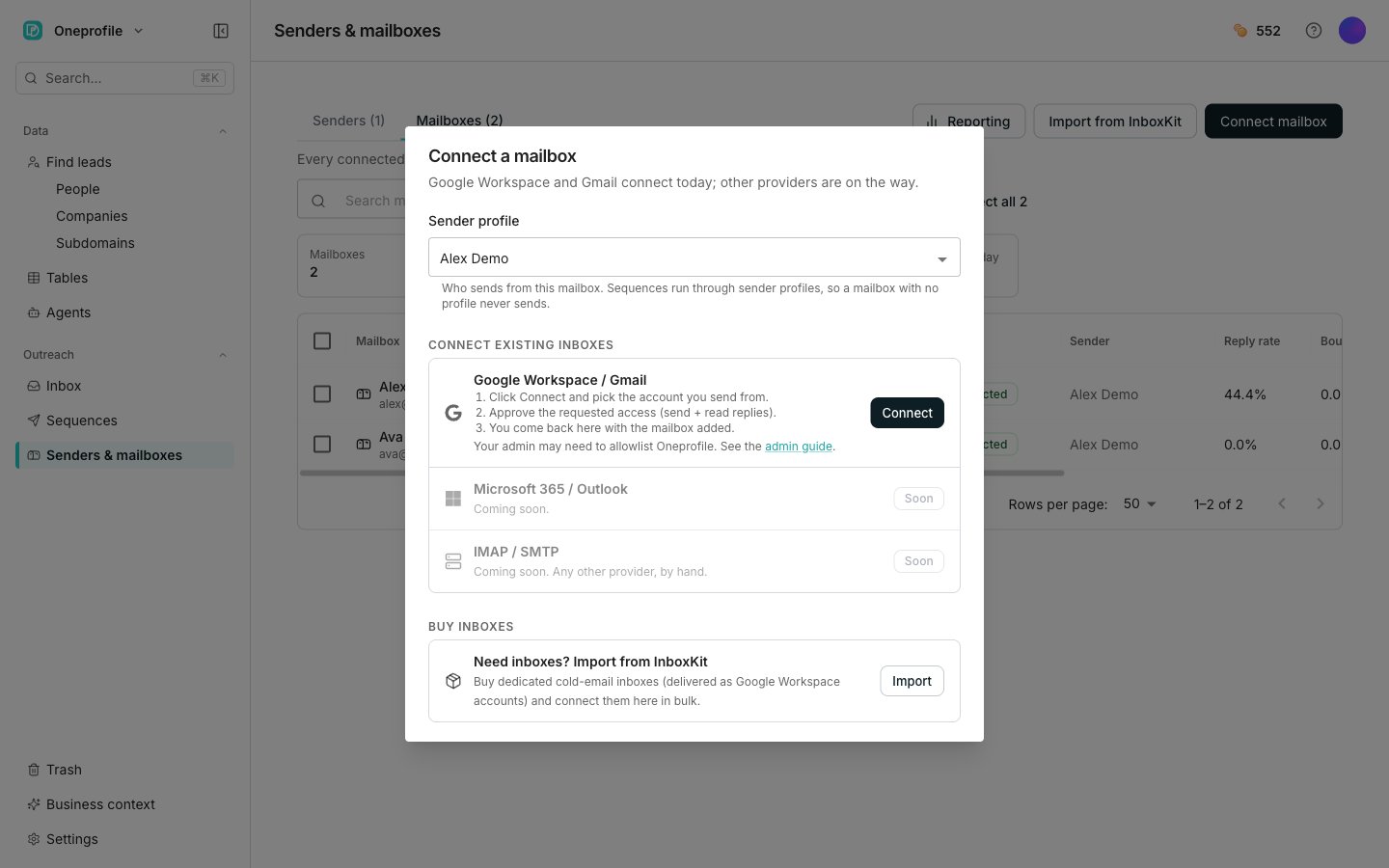 ## Connect a mailbox
On the **Mailboxes** tab, click **Connect mailbox**.
Pick who this mailbox sends as in the **Sender profile** field. Leave it on **Assign later** to decide afterwards.
Under **Connect existing inboxes**, click **Connect** on **Google Workspace / Gmail**. **Microsoft 365 / Outlook** and **IMAP / SMTP** are marked **Soon**.
Pick the account you send from and approve the requested access, which covers sending and reading replies. You come back to the dashboard with the mailbox added.
Only Google Workspace and Gmail connect today. Your admin may need to allowlist Oneprofile first, and the dialog links to Google's own admin guide for that.
## See what you have connected
The **Mailboxes** tab lists every connected email account, its health, and its daily sending limits. Four tiles filter the list: **Mailboxes**, **Disconnected**, **Sent yesterday**, and **Sent today**. A fifth card, **Capacity left today**, shows how many more emails your connected mailboxes can send between them today.
The **Recommendations** column names what to fix on each row, as chips you can click.
## Import inboxes in bulk
If you buy dedicated cold-email inboxes from InboxKit, connect them all at once instead of one at a time. Click **Import from InboxKit** on the **Mailboxes** tab, or **Import** in the connect dialog's **Buy inboxes** section. If your workspace has not connected InboxKit yet, the dialog asks for your API key first.
## Good to know
The import dialog lists every inbox in your InboxKit workspace as a searchable table, with each row's domain and status. Until authorization starts, a row shows the status InboxKit reports for it. From there it moves through **Authorizing…** to **Ready** or **Auth failed**, and shows **Imported** once it is connected.
Tick the inboxes you want, set a **Daily send limit** if you do not want the default, then click **Import**. The button counts your selection before you click it. Leave the limit blank to use the default.
A newly bought domain can take a few minutes to authorize. A banner on the **Mailboxes** tab tracks how many have imported so far, even after you close the dialog. Its **View progress** button reopens the dialog.
* **Reconnect**: the mailbox cannot send until you reconnect it
* **Add a sender**: nobody sends from this mailbox until you assign it to a sender profile
* **High bounces**: the bounce rate is above the alert threshold, so open the mailbox to see which recipients broke
* **Add signature**: emails send with no signature until you set one
A disconnected mailbox sends nothing, and every sequence that depends on it pauses automatically. A warning banner appears at the top of the tab the moment one drops, and the **Disconnected** tile filters the list down to them.
Reconnect a mailbox from its row menu, or from its **Reconnect** chip in the **Recommendations** column.
## Next steps
Group mailboxes into the profile a sequence sends as.
Send outreach from the mailboxes you just connected.
## Connect a mailbox
On the **Mailboxes** tab, click **Connect mailbox**.
Pick who this mailbox sends as in the **Sender profile** field. Leave it on **Assign later** to decide afterwards.
Under **Connect existing inboxes**, click **Connect** on **Google Workspace / Gmail**. **Microsoft 365 / Outlook** and **IMAP / SMTP** are marked **Soon**.
Pick the account you send from and approve the requested access, which covers sending and reading replies. You come back to the dashboard with the mailbox added.
Only Google Workspace and Gmail connect today. Your admin may need to allowlist Oneprofile first, and the dialog links to Google's own admin guide for that.
## See what you have connected
The **Mailboxes** tab lists every connected email account, its health, and its daily sending limits. Four tiles filter the list: **Mailboxes**, **Disconnected**, **Sent yesterday**, and **Sent today**. A fifth card, **Capacity left today**, shows how many more emails your connected mailboxes can send between them today.
The **Recommendations** column names what to fix on each row, as chips you can click.
## Import inboxes in bulk
If you buy dedicated cold-email inboxes from InboxKit, connect them all at once instead of one at a time. Click **Import from InboxKit** on the **Mailboxes** tab, or **Import** in the connect dialog's **Buy inboxes** section. If your workspace has not connected InboxKit yet, the dialog asks for your API key first.
## Good to know
The import dialog lists every inbox in your InboxKit workspace as a searchable table, with each row's domain and status. Until authorization starts, a row shows the status InboxKit reports for it. From there it moves through **Authorizing…** to **Ready** or **Auth failed**, and shows **Imported** once it is connected.
Tick the inboxes you want, set a **Daily send limit** if you do not want the default, then click **Import**. The button counts your selection before you click it. Leave the limit blank to use the default.
A newly bought domain can take a few minutes to authorize. A banner on the **Mailboxes** tab tracks how many have imported so far, even after you close the dialog. Its **View progress** button reopens the dialog.
* **Reconnect**: the mailbox cannot send until you reconnect it
* **Add a sender**: nobody sends from this mailbox until you assign it to a sender profile
* **High bounces**: the bounce rate is above the alert threshold, so open the mailbox to see which recipients broke
* **Add signature**: emails send with no signature until you set one
A disconnected mailbox sends nothing, and every sequence that depends on it pauses automatically. A warning banner appears at the top of the tab the moment one drops, and the **Disconnected** tile filters the list down to them.
Reconnect a mailbox from its row menu, or from its **Reconnect** chip in the **Recommendations** column.
## Next steps
Group mailboxes into the profile a sequence sends as.
Send outreach from the mailboxes you just connected.