> ## Documentation Index
> Fetch the complete documentation index at: https://docs.getoneprofile.ai/llms.txt
> Use this file to discover all available pages before exploring further.
# Choose the audience
> Point a sequence at a table or a saved view, and control who joins it as the table grows.
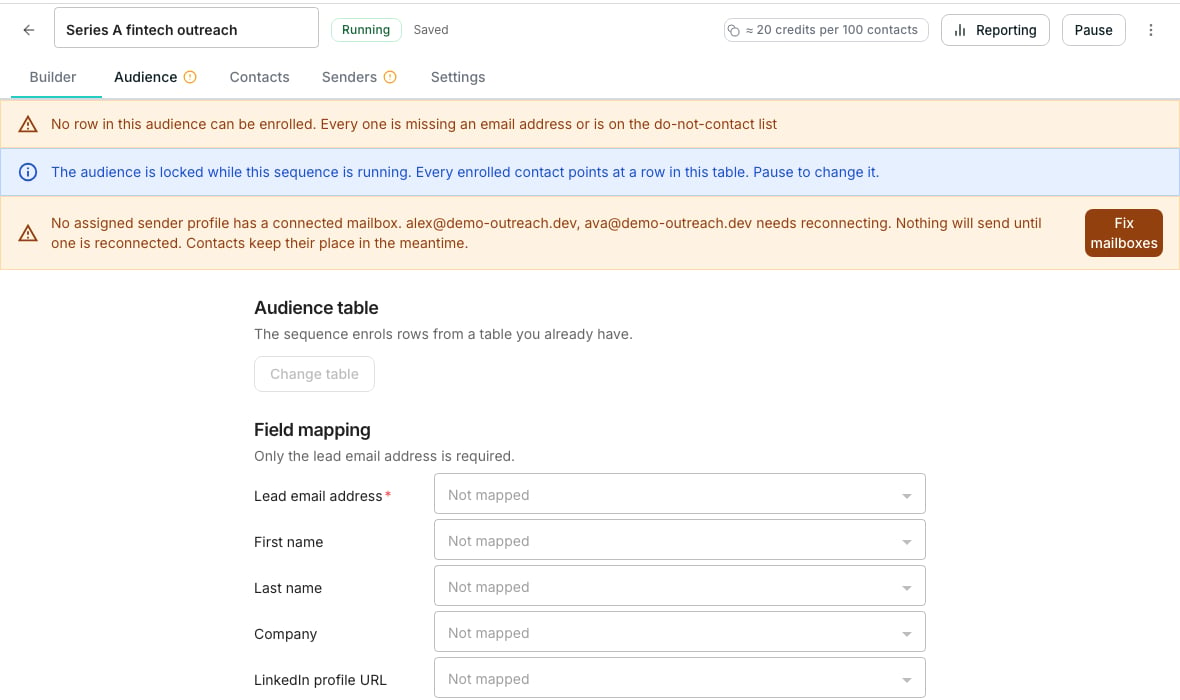
A sequence draws its contacts from a table you already have, on the **Audience** tab of the sequence editor. Map which columns hold the email, name and LinkedIn URL, and every other column becomes a variable automatically.
 ## Point the sequence at a table
Click **Choose a table**, or **Change table** once one is already set.
Pick **Whole table**, or a saved view, from the dropdown beside it.
Only **Lead email address** is required. **First name**, **Last name**, **Company** and **LinkedIn profile URL** are optional but power the variables and the LinkedIn steps.
## Control who joins
A banner reports how many rows will be added. It also names how many are held back: no usable address, already on the do-not-contact list, or already enrolled. New rows are added automatically as the table grows, checked every five minutes, or click **Enrol now** to add them right away.
## Pause, resume or remove someone
These controls sit on the **Contacts** tab, one along from **Audience**. Open a contact's row menu there to **Pause** their journey, or **Resume** one that is paused or stopped on a reply.
Select several rows and click **Remove** to take them out for good. A removed contact stays out even as the audience re-syncs.
## Good to know
An info banner names the column Oneprofile guessed and asks you to confirm it with **Looks right**, or map a different one yourself.
It is also the deduplication key, so the wrong column there is the difference between contacting each lead once and contacting them several times.
No. Removing them here only ends this sequence's journey. Any other sequence they are in keeps running.
Yes, from the same row menu on the **Contacts** tab. They stop here and start at the first step of the sequence you pick, as long as it shares this one's audience table.
## Next steps
Add the steps this audience will move through.
Decide when the sequence is allowed to send to them.
## Point the sequence at a table
Click **Choose a table**, or **Change table** once one is already set.
Pick **Whole table**, or a saved view, from the dropdown beside it.
Only **Lead email address** is required. **First name**, **Last name**, **Company** and **LinkedIn profile URL** are optional but power the variables and the LinkedIn steps.
## Control who joins
A banner reports how many rows will be added. It also names how many are held back: no usable address, already on the do-not-contact list, or already enrolled. New rows are added automatically as the table grows, checked every five minutes, or click **Enrol now** to add them right away.
## Pause, resume or remove someone
These controls sit on the **Contacts** tab, one along from **Audience**. Open a contact's row menu there to **Pause** their journey, or **Resume** one that is paused or stopped on a reply.
Select several rows and click **Remove** to take them out for good. A removed contact stays out even as the audience re-syncs.
## Good to know
An info banner names the column Oneprofile guessed and asks you to confirm it with **Looks right**, or map a different one yourself.
It is also the deduplication key, so the wrong column there is the difference between contacting each lead once and contacting them several times.
No. Removing them here only ends this sequence's journey. Any other sequence they are in keeps running.
Yes, from the same row menu on the **Contacts** tab. They stop here and start at the first step of the sequence you pick, as long as it shares this one's audience table.
## Next steps
Add the steps this audience will move through.
Decide when the sequence is allowed to send to them.