> ## Documentation Index
> Fetch the complete documentation index at: https://docs.getoneprofile.ai/llms.txt
> Use this file to discover all available pages before exploring further.
# Buy domains and mailboxes
> Add sending domains and mailboxes from inside Oneprofile, then bring the new inboxes into a sender profile.
InboxKit sells sending domains and dedicated cold-email inboxes, and Oneprofile connects to it directly. Buy inboxes there, then bring them into a sender profile here without ever seeing a Google consent screen.
 ## Bring inboxes into a sender profile
On the Mailboxes tab, click **Import from InboxKit**.
Search or scroll InboxKit's live inventory and tick the inboxes you want. A domain still authorizing finishes on its own and imports its mailboxes once ready.
Leave **Daily send limit** blank to use the default, then click **Import**.
## Manage the connection
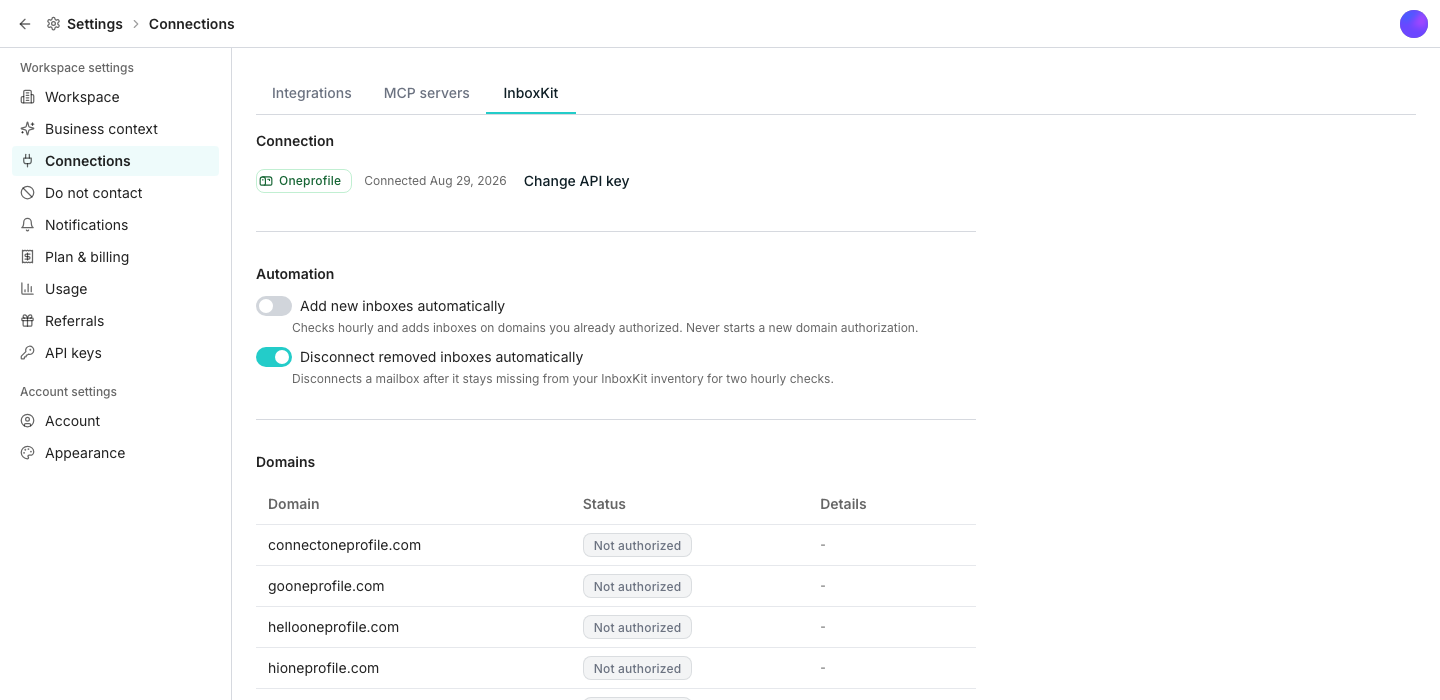
The **InboxKit** tab under **Connections** holds everything about the standing connection, reached from **Manage in Settings** in the import dialog. Two automation toggles, **Add new inboxes automatically** and **Disconnect removed inboxes automatically**, sit above a **Domains** table tracking each one's authorization. An **Import history** lists every past run.
**Change API key** replaces the stored key without disturbing mailboxes already imported. **Disconnect InboxKit** or **Remove everything** sit in the **Danger zone** at the bottom.
## Good to know
No. InboxKit inboxes authorize themselves, so nobody sees a consent screen or types a password.
InboxKit is still proving that domain is yours. Its mailboxes import automatically the moment that finishes.
Nothing about your imported mailboxes changes. Oneprofile just stops checking InboxKit for new or removed inboxes.
You choose: disconnect them and keep their history, or delete them along with it.
## Next steps
Connect a Google Workspace or Gmail inbox instead.
Check the new inboxes once they arrive.
## Bring inboxes into a sender profile
On the Mailboxes tab, click **Import from InboxKit**.
Search or scroll InboxKit's live inventory and tick the inboxes you want. A domain still authorizing finishes on its own and imports its mailboxes once ready.
Leave **Daily send limit** blank to use the default, then click **Import**.
## Manage the connection
The **InboxKit** tab under **Connections** holds everything about the standing connection, reached from **Manage in Settings** in the import dialog. Two automation toggles, **Add new inboxes automatically** and **Disconnect removed inboxes automatically**, sit above a **Domains** table tracking each one's authorization. An **Import history** lists every past run.
**Change API key** replaces the stored key without disturbing mailboxes already imported. **Disconnect InboxKit** or **Remove everything** sit in the **Danger zone** at the bottom.
## Good to know
No. InboxKit inboxes authorize themselves, so nobody sees a consent screen or types a password.
InboxKit is still proving that domain is yours. Its mailboxes import automatically the moment that finishes.
Nothing about your imported mailboxes changes. Oneprofile just stops checking InboxKit for new or removed inboxes.
You choose: disconnect them and keep their history, or delete them along with it.
## Next steps
Connect a Google Workspace or Gmail inbox instead.
Check the new inboxes once they arrive.