> ## Documentation Index
> Fetch the complete documentation index at: https://docs.getoneprofile.ai/llms.txt
> Use this file to discover all available pages before exploring further.
# Look up your own data
> Read records out of a tool you already use, so a row can be checked against your own systems before you act on it.
Look up your own data pulls a single record from a tool you already connected, using your own connection rather than a third party. Add it as a column and check a row against your own systems before you act on it.
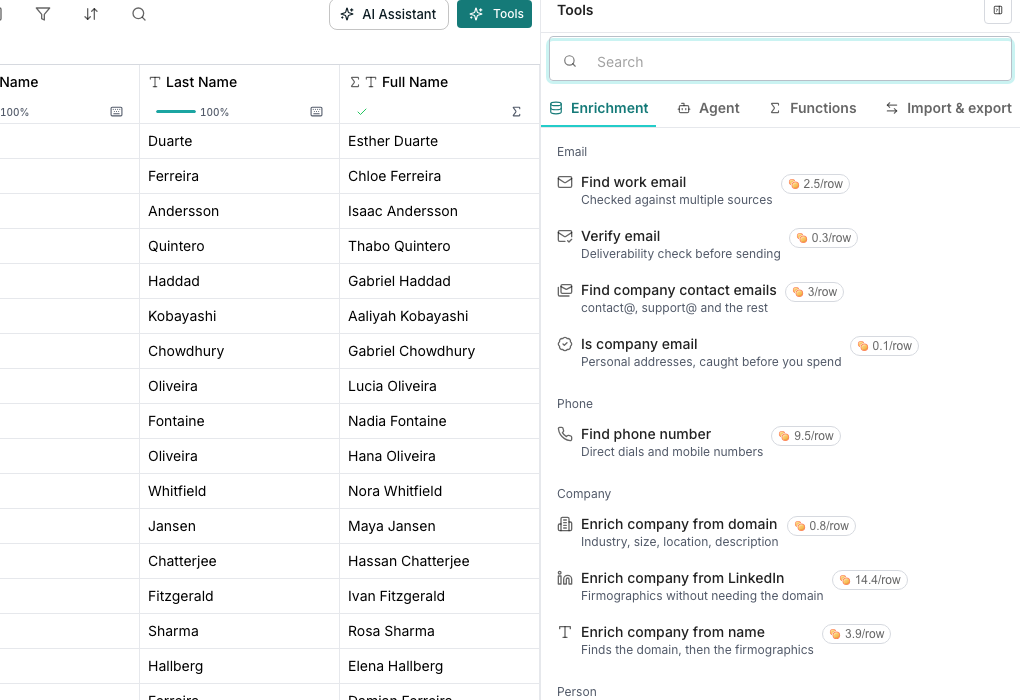 ## Add a lookup column
Every one of your connected integrations that supports fetching a single record appears here.
Each row reads Get, followed by the record type, for example a contact or a user.
Under **Look up by**, pick the field that identifies the record, such as an ID or an email address.
## What comes back
A lookup returns the whole record as one cell. Open it and give any field its own column once you know which ones you need.
## Good to know
Your own. The lookup runs on the connection you set up, not a Oneprofile-held account, so it only sees what that connection can see.
Yes, a small flat amount per row it successfully finds. A row where nothing is found, or a repeat of a lookup already run, is not charged.
Connect it first. **See all connections** on the Your data section opens the page where you add one.
Yes. Reopen the column and change **Connection**, **Record type** or **Look up by** in its settings.
## Next steps
Browse every tool Oneprofile can connect to.
See the other kinds of columns a table can hold.
## Add a lookup column
Every one of your connected integrations that supports fetching a single record appears here.
Each row reads Get, followed by the record type, for example a contact or a user.
Under **Look up by**, pick the field that identifies the record, such as an ID or an email address.
## What comes back
A lookup returns the whole record as one cell. Open it and give any field its own column once you know which ones you need.
## Good to know
Your own. The lookup runs on the connection you set up, not a Oneprofile-held account, so it only sees what that connection can see.
Yes, a small flat amount per row it successfully finds. A row where nothing is found, or a repeat of a lookup already run, is not charged.
Connect it first. **See all connections** on the Your data section opens the page where you add one.
Yes. Reopen the column and change **Connection**, **Record type** or **Look up by** in its settings.
## Next steps
Browse every tool Oneprofile can connect to.
See the other kinds of columns a table can hold.