> ## Documentation Index
> Fetch the complete documentation index at: https://docs.getoneprofile.ai/llms.txt
> Use this file to discover all available pages before exploring further.
# Welcome
> What Oneprofile does, the loop it runs on, and the three ways to get your first list of leads in.
Oneprofile finds leads, fills in what you know about them, and sends outreach, all from one table. This page is the fast way in: what the loop looks like, and the three ways to start it.
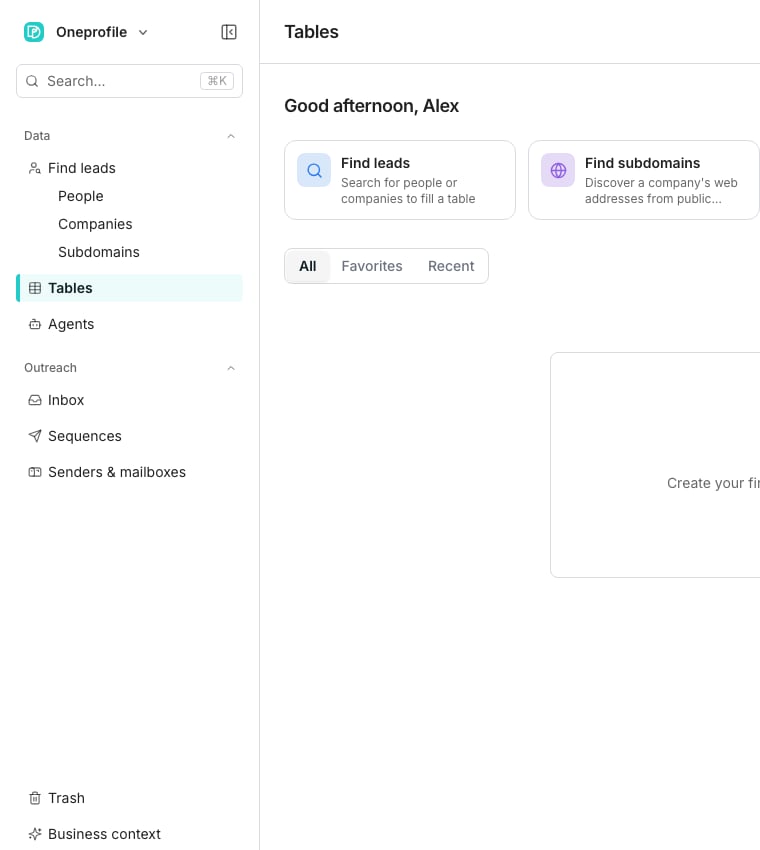 ## Get your first leads in
Every table starts the same way: rows come from a search, a spreadsheet, or a tool you already use.
Search with filters and add the matches to a table.
Bring a spreadsheet in as a new table.
Add rows from a tool you already use.
## The loop it runs on
Once rows are in a table, Oneprofile carries them through the same four stages every time:
* Find leads: search or import rows into a table
* Enrich: columns fill in emails, phone numbers, and firmographics
* Reach out: a sequence sends email and LinkedIn steps
* Read replies: every conversation lands in the inbox
See [How Oneprofile works](/get-started/how-oneprofile-works) for the full tour, including the words the app uses along the way.
## Good to know
No. **Save to an existing table** adds a new search's results to a table you already have. A table imported from a tool keeps a link you can pull from again.
Import from a tool you already use, such as HubSpot or Salesforce. It brings in what is already there.
They arrive in a table like any other, where you can add more columns, run an agent, or send them into a sequence.
## Next steps
The two-minute tour of the loop and the words it uses.
Do the loop once, in your own workspace.
## Get your first leads in
Every table starts the same way: rows come from a search, a spreadsheet, or a tool you already use.
Search with filters and add the matches to a table.
Bring a spreadsheet in as a new table.
Add rows from a tool you already use.
## The loop it runs on
Once rows are in a table, Oneprofile carries them through the same four stages every time:
* Find leads: search or import rows into a table
* Enrich: columns fill in emails, phone numbers, and firmographics
* Reach out: a sequence sends email and LinkedIn steps
* Read replies: every conversation lands in the inbox
See [How Oneprofile works](/get-started/how-oneprofile-works) for the full tour, including the words the app uses along the way.
## Good to know
No. **Save to an existing table** adds a new search's results to a table you already have. A table imported from a tool keeps a link you can pull from again.
Import from a tool you already use, such as HubSpot or Salesforce. It brings in what is already there.
They arrive in a table like any other, where you can add more columns, run an agent, or send them into a sequence.
## Next steps
The two-minute tour of the loop and the words it uses.
Do the loop once, in your own workspace.