> ## Documentation Index
> Fetch the complete documentation index at: https://docs.getoneprofile.ai/llms.txt
> Use this file to discover all available pages before exploring further.
# Quickstart
> Build your first table, add rows to it, and fill a column with enriched data.
Oneprofile keeps your go-to-market data in tables. This page takes you from an empty workspace to a first table with rows added and one column enriched.
 ## Start a table from the launcher
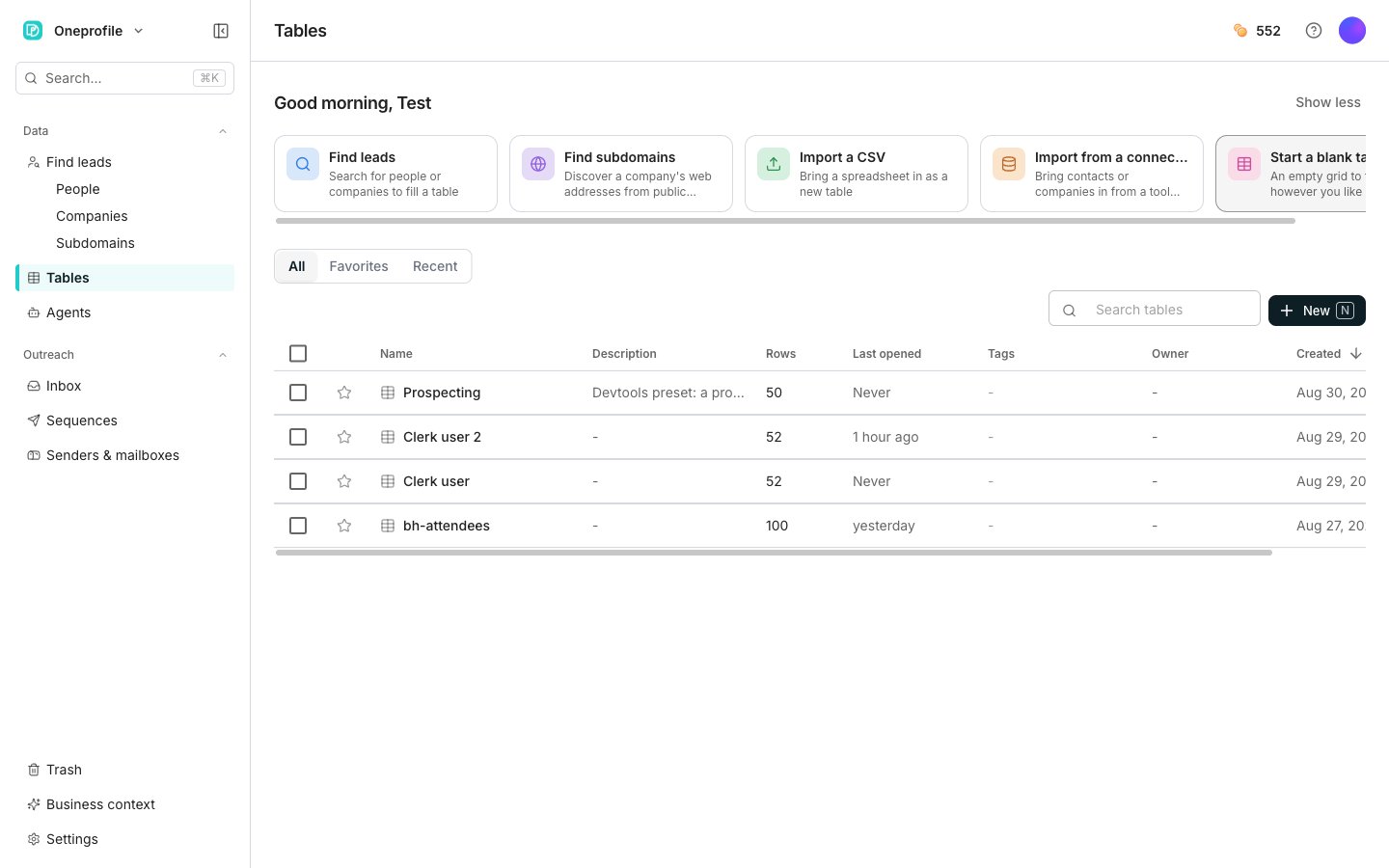
**Tables** opens on a row of cards. Each card is one way to fill a new table:
* **Find leads**: Search for people or companies to fill a table
* **Find subdomains**: Discover a company's web addresses from public certificates
* **Import a CSV**: Bring a spreadsheet in as a new table
* **Import from a connected tool**: Bring contacts or companies in from a tool you already use
* **Start a blank table**: An empty grid to fill however you like
For a first table, use **Find leads** or **Import a CSV**.
## Find your way around the sidebar
The sidebar has two sections:
* **Data**: **Find leads**, with **People**, **Companies** and **Subdomains** beneath it, plus **Tables** and **Agents**
* **Outreach**: **Inbox**, **Sequences** and **Senders & mailboxes**
**Trash**, **Business context** and **Settings** stay pinned at the bottom.
## Build your first table
Click **Tables** in the sidebar. The launcher's cards sit above your table list.
Click **Find leads** to search for people or companies, or **Import a CSV** to bring in a spreadsheet you already have. Either card lands you on a table with rows added.
Click **Tools** above the grid, open the **Enrichment** tab, and pick the data you want. It opens in the column editor.
The **Inputs** card lists what the enrichment needs. For each one, pick the column that holds that value.
Click **Create & run 10 rows**. Oneprofile checks several sources and fills in that first batch.
Enrichment happens as a run in the background. Keep working in the table while the column fills in.
Open the column's header menu and choose **Run column**.
The rows you ran show a value. From here you can add more enriched columns, add an AI agent column, or send the rows into a sequence.
## Good to know
Click **Show less** to collapse the cards and go straight to your table list. **Show more** brings them back, and your choice sticks.
Click **New** at the top right for the same paths. An empty workspace also shows **Create table** in the middle of the page. Both open the same menu.
That menu offers Find leads, Import a CSV, Import from a connected tool and Start a blank table. For [Find subdomains](/find-leads/find-subdomains), use the launcher card.
Your plan's table allowance is used up. Hover a card to see the limit, or click the **Upgrade** chip beside **New**.
* **Find leads**: Search for new rows, with **People**, **Companies** and **Subdomains** beneath it
* **Tables**: Your list of tables
* **Agents**: AI agents you build and run against your data
* **Inbox**: Replies from your outreach in one place
* **Sequences**: The outreach campaigns you send from your tables
* **Senders & mailboxes**: The accounts your sequences send from
## Next steps
Search for rows and save them to a table.
Bring a spreadsheet you already have into a table.
Add columns that fill themselves in from several sources.
Turn a table's rows into outreach.
## Start a table from the launcher
**Tables** opens on a row of cards. Each card is one way to fill a new table:
* **Find leads**: Search for people or companies to fill a table
* **Find subdomains**: Discover a company's web addresses from public certificates
* **Import a CSV**: Bring a spreadsheet in as a new table
* **Import from a connected tool**: Bring contacts or companies in from a tool you already use
* **Start a blank table**: An empty grid to fill however you like
For a first table, use **Find leads** or **Import a CSV**.
## Find your way around the sidebar
The sidebar has two sections:
* **Data**: **Find leads**, with **People**, **Companies** and **Subdomains** beneath it, plus **Tables** and **Agents**
* **Outreach**: **Inbox**, **Sequences** and **Senders & mailboxes**
**Trash**, **Business context** and **Settings** stay pinned at the bottom.
## Build your first table
Click **Tables** in the sidebar. The launcher's cards sit above your table list.
Click **Find leads** to search for people or companies, or **Import a CSV** to bring in a spreadsheet you already have. Either card lands you on a table with rows added.
Click **Tools** above the grid, open the **Enrichment** tab, and pick the data you want. It opens in the column editor.
The **Inputs** card lists what the enrichment needs. For each one, pick the column that holds that value.
Click **Create & run 10 rows**. Oneprofile checks several sources and fills in that first batch.
Enrichment happens as a run in the background. Keep working in the table while the column fills in.
Open the column's header menu and choose **Run column**.
The rows you ran show a value. From here you can add more enriched columns, add an AI agent column, or send the rows into a sequence.
## Good to know
Click **Show less** to collapse the cards and go straight to your table list. **Show more** brings them back, and your choice sticks.
Click **New** at the top right for the same paths. An empty workspace also shows **Create table** in the middle of the page. Both open the same menu.
That menu offers Find leads, Import a CSV, Import from a connected tool and Start a blank table. For [Find subdomains](/find-leads/find-subdomains), use the launcher card.
Your plan's table allowance is used up. Hover a card to see the limit, or click the **Upgrade** chip beside **New**.
* **Find leads**: Search for new rows, with **People**, **Companies** and **Subdomains** beneath it
* **Tables**: Your list of tables
* **Agents**: AI agents you build and run against your data
* **Inbox**: Replies from your outreach in one place
* **Sequences**: The outreach campaigns you send from your tables
* **Senders & mailboxes**: The accounts your sequences send from
## Next steps
Search for rows and save them to a table.
Bring a spreadsheet you already have into a table.
Add columns that fill themselves in from several sources.
Turn a table's rows into outreach.