> ## Documentation Index
> Fetch the complete documentation index at: https://docs.getoneprofile.ai/llms.txt
> Use this file to discover all available pages before exploring further.
# Keyboard shortcuts
> Open the command palette, jump between tables, and work the grid without reaching for the mouse.
Oneprofile has one command palette for the whole app, plus chords for working a table's grid without the mouse. Every shortcut below is also shown next to the control it triggers.
 ## Open the command palette
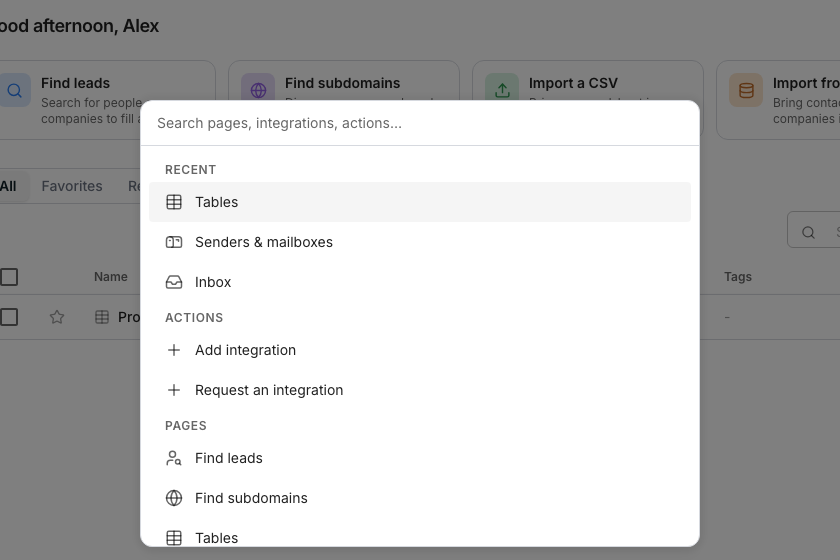
Opens the palette from any page. Search pages, integrations and account actions, or jump to a page you visited recently. Use Ctrl+K on Windows and Linux.
Closes the palette.
## Work a table's grid
Every shortcut below also shows next to its control in the grid's toolbar.
| Keys | What it does |
| --------------------- | ------------------------------------------ |
| Cmd+F | Opens the grid's own search |
| Cmd+E | Opens **Tools** |
| Cmd+Z | Undoes the last edit |
| Cmd+Shift+Z | Redoes it |
| Cmd+C / Cmd+X / Cmd+V | Copies, cuts, or pastes the selected cells |
## Move around the grid without a mouse
| Keys | What it does |
| ------------------ | ----------------------------------------------------------- |
| Arrow keys | Move the selected cell |
| Shift+arrow | Extends the selection |
| Tab / Shift+Tab | Steps sideways, wrapping onto the next or previous row |
| Cmd+arrow | Jumps to the edge of the grid in that direction |
| Cmd+Home / Cmd+End | Jumps to the grid's top-left or bottom-right corner |
| Enter | Starts editing the selected cell |
| Delete / Backspace | Clears the selected cells |
| Escape | Backs out one step, then collapses a range back to one cell |
## Collapse the sidebar
Press Cmd and the backslash key to collapse or expand the sidebar to icons only. The same combination switches it back.
## Good to know
Use Ctrl instead of Cmd throughout. Every shortcut on this page works the same way on both.
On a narrow window the sidebar is forced to its icon rail. The shortcut turns off there because there is nothing left to collapse into.
It closes whatever is open, in order: a fill in progress, then a header menu, then an open panel such as **Tools**. With nothing open, it collapses a multi-cell selection back to one cell.
Some buttons carry their own single-key shortcut, shown as a small key next to their label. They only fire while you are not typing in a field.
## Next steps
See what a column's own run menu can do.
Learn the rest of the grid.
## Open the command palette
Opens the palette from any page. Search pages, integrations and account actions, or jump to a page you visited recently. Use Ctrl+K on Windows and Linux.
Closes the palette.
## Work a table's grid
Every shortcut below also shows next to its control in the grid's toolbar.
| Keys | What it does |
| --------------------- | ------------------------------------------ |
| Cmd+F | Opens the grid's own search |
| Cmd+E | Opens **Tools** |
| Cmd+Z | Undoes the last edit |
| Cmd+Shift+Z | Redoes it |
| Cmd+C / Cmd+X / Cmd+V | Copies, cuts, or pastes the selected cells |
## Move around the grid without a mouse
| Keys | What it does |
| ------------------ | ----------------------------------------------------------- |
| Arrow keys | Move the selected cell |
| Shift+arrow | Extends the selection |
| Tab / Shift+Tab | Steps sideways, wrapping onto the next or previous row |
| Cmd+arrow | Jumps to the edge of the grid in that direction |
| Cmd+Home / Cmd+End | Jumps to the grid's top-left or bottom-right corner |
| Enter | Starts editing the selected cell |
| Delete / Backspace | Clears the selected cells |
| Escape | Backs out one step, then collapses a range back to one cell |
## Collapse the sidebar
Press Cmd and the backslash key to collapse or expand the sidebar to icons only. The same combination switches it back.
## Good to know
Use Ctrl instead of Cmd throughout. Every shortcut on this page works the same way on both.
On a narrow window the sidebar is forced to its icon rail. The shortcut turns off there because there is nothing left to collapse into.
It closes whatever is open, in order: a fill in progress, then a header menu, then an open panel such as **Tools**. With nothing open, it collapses a multi-cell selection back to one cell.
Some buttons carry their own single-key shortcut, shown as a small key next to their label. They only fire while you are not typing in a field.
## Next steps
See what a column's own run menu can do.
Learn the rest of the grid.