> ## Documentation Index
> Fetch the complete documentation index at: https://docs.getoneprofile.ai/llms.txt
> Use this file to discover all available pages before exploring further.
# Search with AI
> Describe the list you want in plain language and let the assistant set the filters for you.
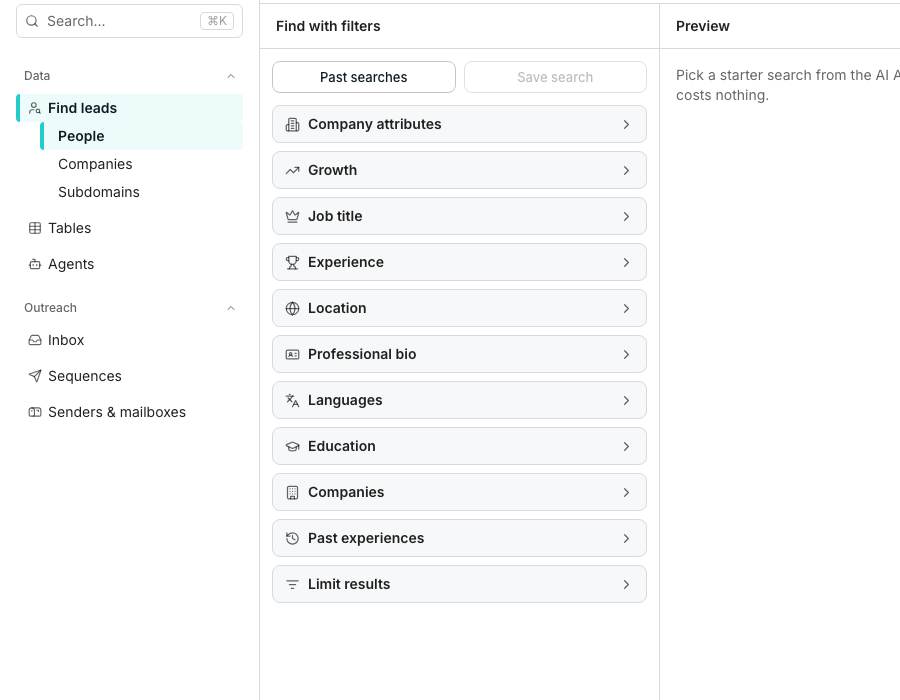
The AI Assistant panel turns a plain description into a filtered search. Describe who you want, and it sets the filters for you to review before anything runs.
 ## Describe your search
Click **Show AI Assistant** if the panel is not already open beside your filters.
Use the **Describe the leads you want** box, for example "CTOs at German fintechs over 100 people".
The assistant reads your request, then sets the filters and opens the sections it changed.
## What it changes, and how to review it
The assistant only sets filters that already exist in **Find with filters**, and opens the sections it just changed so you can see the result. Anything it can't express as a filter, it leaves for you to add by hand.
Edited fields stay highlighted until you change one yourself, and an **Undo** button undoes the whole change in one click. If your wording is ambiguous, the assistant asks a question with tappable answers, or offers a one-tap switch to the reading it did not pick.
## Good to know
Yes. **Previous conversations** lists every thread you've started, and **New conversation** starts a fresh one without touching your current filters.
They're drawn from your business context, and only show while the builder is empty.
Nothing is lost. **Undo** restores exactly what you had, and you can also edit any field by hand afterwards.
## Next steps
Build or refine a search by hand.
Save a search the assistant just set, or reopen one from history.
## Describe your search
Click **Show AI Assistant** if the panel is not already open beside your filters.
Use the **Describe the leads you want** box, for example "CTOs at German fintechs over 100 people".
The assistant reads your request, then sets the filters and opens the sections it changed.
## What it changes, and how to review it
The assistant only sets filters that already exist in **Find with filters**, and opens the sections it just changed so you can see the result. Anything it can't express as a filter, it leaves for you to add by hand.
Edited fields stay highlighted until you change one yourself, and an **Undo** button undoes the whole change in one click. If your wording is ambiguous, the assistant asks a question with tappable answers, or offers a one-tap switch to the reading it did not pick.
## Good to know
Yes. **Previous conversations** lists every thread you've started, and **New conversation** starts a fresh one without touching your current filters.
They're drawn from your business context, and only show while the builder is empty.
Nothing is lost. **Undo** restores exactly what you had, and you can also edit any field by hand afterwards.
## Next steps
Build or refine a search by hand.
Save a search the assistant just set, or reopen one from history.