> ## Documentation Index
> Fetch the complete documentation index at: https://docs.getoneprofile.ai/llms.txt
> Use this file to discover all available pages before exploring further.
# Saved searches
> Save a search you will run again, reopen one from history, and seed a new search from a table you already have.
A saved search keeps a named set of filters for the whole workspace to reuse. Reopen one from history, start from a table you already have, or put a search on a table's own recurring schedule.
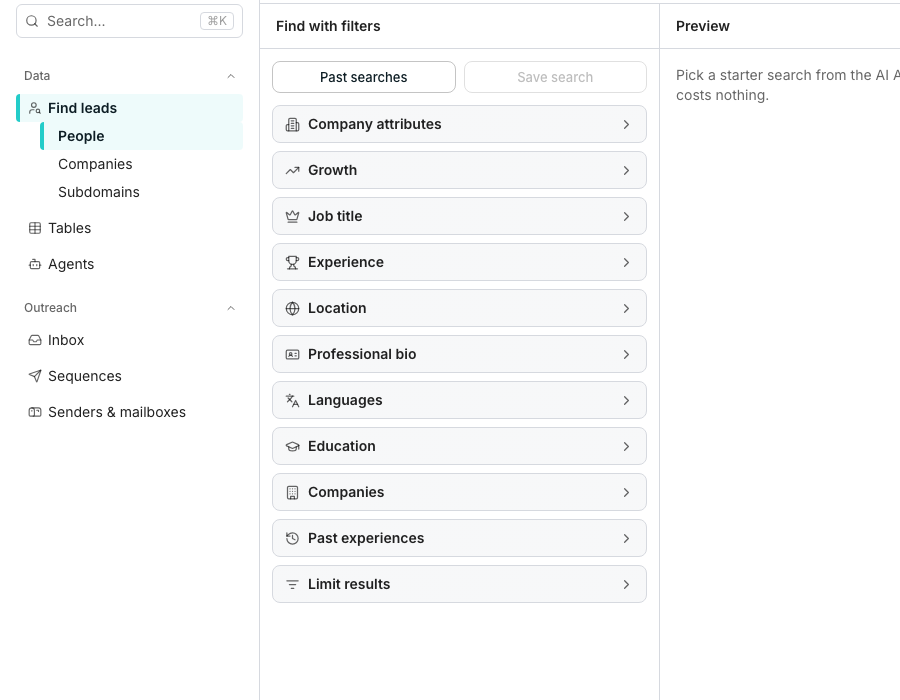 ## Save a search
Set filters until the count shows what you want. Saving needs a search that is not empty.
Opens **Save this search**.
Add a name and, if it helps, a description. Nothing runs and nothing is spent by saving.
The search is saved for the whole workspace, listed under **Past searches**.
## Reopen a past search
Click **Past searches** to open three tabs:
| Tab | What's in it |
| ------------ | ------------------------------------------------------------------ |
| Recents | Every search you've actually run, previewed or added, newest first |
| Saved by you | Searches you saved yourself |
| Workspace | Every search anyone in the workspace saved |
Clicking a row loads its filters into the builder. Nothing runs again until you do.
## Start a search from suggestions or a table
The AI Assistant offers a few suggested searches drawn from your business context. Click one to load its filters immediately, without typing anything.
In the Companies filter group, set **Start from** to **A table of companies**.
Click **Choose a company table…**, pick a table, then a text or number column, such as domains or LinkedIn company URLs.
Click **Exclude from a table…** to drop a table's companies out of the results instead of searching for them.
Values are copied as they are today. Click **Refresh** to copy the column's current values again after the table changes.
## Re-run a search on a schedule
A search attached to a table can run again on a schedule instead of only by hand. Attach one through **Save to an existing table**, or from a table's own **Lead search** panel.
On a table built from a search, click **Lead search** in the toolbar, then **Edit inputs**.
Under **Run this search**, switch from **Manually** to **On a schedule**.
Pick a **Frequency**, a time, and a start date.
New matches are added to the same table each time it runs.
## Good to know
Click **Lead search** in the table's toolbar. It only appears on a table built from a search, and shows the filters, the last run, and the schedule.
You're asked whether to keep the rows it already added, or delete them along with the search.
No. Saving only stores the filters. Running or previewing the search is what counts and spends credits.
Oneprofile refuses the column and says so, rather than silently cutting it off. Filter the table down first, or pick a column with fewer distinct values.
## Next steps
Build the search you'll save or reuse.
Describe a search instead of building one by hand.
## Save a search
Set filters until the count shows what you want. Saving needs a search that is not empty.
Opens **Save this search**.
Add a name and, if it helps, a description. Nothing runs and nothing is spent by saving.
The search is saved for the whole workspace, listed under **Past searches**.
## Reopen a past search
Click **Past searches** to open three tabs:
| Tab | What's in it |
| ------------ | ------------------------------------------------------------------ |
| Recents | Every search you've actually run, previewed or added, newest first |
| Saved by you | Searches you saved yourself |
| Workspace | Every search anyone in the workspace saved |
Clicking a row loads its filters into the builder. Nothing runs again until you do.
## Start a search from suggestions or a table
The AI Assistant offers a few suggested searches drawn from your business context. Click one to load its filters immediately, without typing anything.
In the Companies filter group, set **Start from** to **A table of companies**.
Click **Choose a company table…**, pick a table, then a text or number column, such as domains or LinkedIn company URLs.
Click **Exclude from a table…** to drop a table's companies out of the results instead of searching for them.
Values are copied as they are today. Click **Refresh** to copy the column's current values again after the table changes.
## Re-run a search on a schedule
A search attached to a table can run again on a schedule instead of only by hand. Attach one through **Save to an existing table**, or from a table's own **Lead search** panel.
On a table built from a search, click **Lead search** in the toolbar, then **Edit inputs**.
Under **Run this search**, switch from **Manually** to **On a schedule**.
Pick a **Frequency**, a time, and a start date.
New matches are added to the same table each time it runs.
## Good to know
Click **Lead search** in the table's toolbar. It only appears on a table built from a search, and shows the filters, the last run, and the schedule.
You're asked whether to keep the rows it already added, or delete them along with the search.
No. Saving only stores the filters. Running or previewing the search is what counts and spends credits.
Oneprofile refuses the column and says so, rather than silently cutting it off. Filter the table down first, or pick a column with fewer distinct values.
## Next steps
Build the search you'll save or reuse.
Describe a search instead of building one by hand.