> ## Documentation Index
> Fetch the complete documentation index at: https://docs.getoneprofile.ai/llms.txt
> Use this file to discover all available pages before exploring further.
# Find subdomains
> Type one company domain and get back the web addresses underneath it, then turn the whole list into a table.
Type a company's domain and get back the web addresses hiding underneath it. For a lot of software companies, that list is their customers.
 ## Search a domain
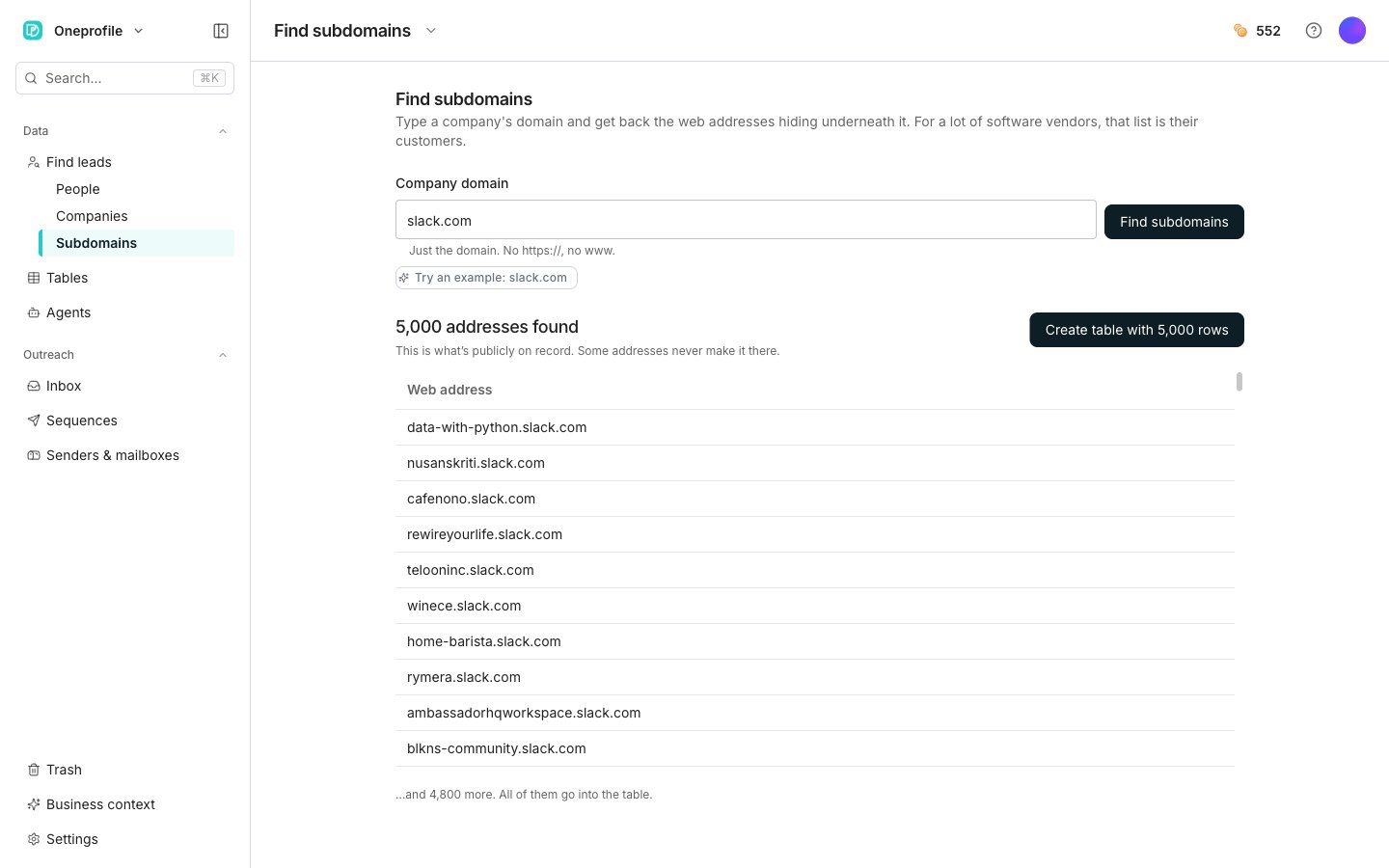
Type it into **Company domain**. Just the domain, so leave off `https://` and `www`.
Click **Find subdomains**. The page tells you what it is doing while it reads.
A line says how many addresses were found. Under it, a single **Web address** column lists the first 200 of them.
Click **Create table with N rows**, which shows the exact number of addresses it will add. Oneprofile names the table after the domain and opens it.
This is where it differs from Find leads. There is no **Save to a new table** or **Save to an existing table** choice, and no enrich step. One button makes the table, and it opens straight away.
Every address goes into that table, including the ones the preview did not have room for. The list is what is publicly on record. Some addresses never make it there, so a result is not always complete.
Click the **Try an example: slack.com** chip to run a real search before you type anything of your own.
## Good to know
That is normal, and the page says so as it waits. It starts on "Reading the public record…", then says it is taking the slow route, then that big companies have a lot of addresses.
After a couple of minutes it tells you that you can leave the page. The link still has the result when you come back. A reload or a closed tab rejoins the same search instead of starting a second one.
The page says "Nothing came back for" your domain. That usually means one of two things.
The company may cover all its addresses with a single catch-all certificate. That leaves nothing public to read. Or there genuinely are not any.
Try their other domains. Plenty of companies run customer sites on a separate one.
You get "The public record didn't answer" and a **Try again** button. It is a free service and it is often busy, so nothing is lost on your side. A search that stops responding altogether says "We lost track of this search" instead, and nothing was charged for it.
The page carries its own **How does this work?** explainer under the empty state. Every web address that starts with `https://` needs a security certificate, and every certificate ever issued is written into a public record anyone can read.
Software companies usually give each customer their own web address, like refinery29.slack.com. Typing one of their domains reads that record back to you, and their customer list tends to come with it.
## Next steps
Fill in details for every address you found.
Search with filters instead of a domain.
## Search a domain
Type it into **Company domain**. Just the domain, so leave off `https://` and `www`.
Click **Find subdomains**. The page tells you what it is doing while it reads.
A line says how many addresses were found. Under it, a single **Web address** column lists the first 200 of them.
Click **Create table with N rows**, which shows the exact number of addresses it will add. Oneprofile names the table after the domain and opens it.
This is where it differs from Find leads. There is no **Save to a new table** or **Save to an existing table** choice, and no enrich step. One button makes the table, and it opens straight away.
Every address goes into that table, including the ones the preview did not have room for. The list is what is publicly on record. Some addresses never make it there, so a result is not always complete.
Click the **Try an example: slack.com** chip to run a real search before you type anything of your own.
## Good to know
That is normal, and the page says so as it waits. It starts on "Reading the public record…", then says it is taking the slow route, then that big companies have a lot of addresses.
After a couple of minutes it tells you that you can leave the page. The link still has the result when you come back. A reload or a closed tab rejoins the same search instead of starting a second one.
The page says "Nothing came back for" your domain. That usually means one of two things.
The company may cover all its addresses with a single catch-all certificate. That leaves nothing public to read. Or there genuinely are not any.
Try their other domains. Plenty of companies run customer sites on a separate one.
You get "The public record didn't answer" and a **Try again** button. It is a free service and it is often busy, so nothing is lost on your side. A search that stops responding altogether says "We lost track of this search" instead, and nothing was charged for it.
The page carries its own **How does this work?** explainer under the empty state. Every web address that starts with `https://` needs a security certificate, and every certificate ever issued is written into a public record anyone can read.
Software companies usually give each customer their own web address, like refinery29.slack.com. Typing one of their domains reads that record back to you, and their customer list tends to come with it.
## Next steps
Fill in details for every address you found.
Search with filters instead of a domain.