> ## Documentation Index
> Fetch the complete documentation index at: https://docs.getoneprofile.ai/llms.txt
> Use this file to discover all available pages before exploring further.
# Backlinks
> Name a domain or a page and get the sites that link to it, one row per referring site, with the link's rank, anchor text and page on the row.
Backlinks turns a competitor's domain into a table of the sites that link to it. The count is free and updates as you type. The rows are free too, so only the enrichments you tick cost credits.
 ## Build a search
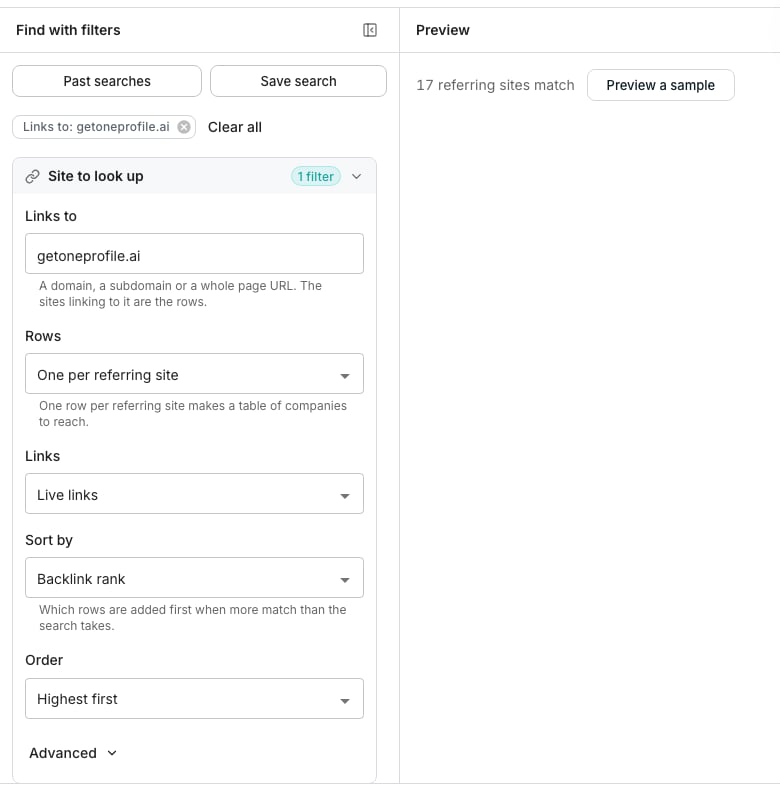
Open [Sites linking to a domain](https://app.getoneprofile.ai/find-leads/backlinks) and type a domain into **Links to**, such as competitor.com. A subdomain or a whole page URL works as well.
**Rows** decides what one row is. **One per referring site** is the default and gives you a list of companies to reach. **Every link** gives every link, several per site.
Narrow the rows under the four groups below. They cover the referring site, the referring page, the link itself and the page it points at. Each group folds its rarer filters under **Advanced**.
## Preview and save the matches
Click **Preview a sample** to see the referring site, page title and anchor text of five matches. Click **Continue**, then choose **Save to a new table** or **Save to an existing table**. The **Enrich these rows** panel shows what a row costs before anything is added.
## Good to know
The referring site and its domain, the page the link is on, the anchor text, the linked page, the link type and whether it passes rank. Then the three ranks, the spam score, the site type, its country and language, and when the link was first and last seen. Every other detail of the link stays on the row's **Backlink** column.
Live links, by default. **Links** switches to lost links, or to both.
The best first. Rows are sorted by the rank the link passes unless you pick another attribute under **Sort by**, and the top of that order is what a table gets.
A search takes at most eight filter values at once, and every value in a list counts as one. Three referring sites and a country are four. Remove one and run it again.
Backlink rank is what the link passes to the site you named. Domain rank and page rank are the referring site's and page's own standing. All three read on a scale of 0 to 100 unless you switch **Rank scale** under Advanced.
Yes. Under Advanced, pick **Keep a few links per** and set **Links to keep per value**. That replaces the **Rows** choice.
The referring site is a platform host, such as a social network or a link aggregator, rather than a company of its own. The **Referring domain** column still names the site.
Yes. Put their hosts under **Referring sites** and the search only reads links from those sites, up to eight.
## Next steps
Pick the details to fill in before the rows are added.
Search people and companies by who they are.
## Build a search
Open [Sites linking to a domain](https://app.getoneprofile.ai/find-leads/backlinks) and type a domain into **Links to**, such as competitor.com. A subdomain or a whole page URL works as well.
**Rows** decides what one row is. **One per referring site** is the default and gives you a list of companies to reach. **Every link** gives every link, several per site.
Narrow the rows under the four groups below. They cover the referring site, the referring page, the link itself and the page it points at. Each group folds its rarer filters under **Advanced**.
## Preview and save the matches
Click **Preview a sample** to see the referring site, page title and anchor text of five matches. Click **Continue**, then choose **Save to a new table** or **Save to an existing table**. The **Enrich these rows** panel shows what a row costs before anything is added.
## Good to know
The referring site and its domain, the page the link is on, the anchor text, the linked page, the link type and whether it passes rank. Then the three ranks, the spam score, the site type, its country and language, and when the link was first and last seen. Every other detail of the link stays on the row's **Backlink** column.
Live links, by default. **Links** switches to lost links, or to both.
The best first. Rows are sorted by the rank the link passes unless you pick another attribute under **Sort by**, and the top of that order is what a table gets.
A search takes at most eight filter values at once, and every value in a list counts as one. Three referring sites and a country are four. Remove one and run it again.
Backlink rank is what the link passes to the site you named. Domain rank and page rank are the referring site's and page's own standing. All three read on a scale of 0 to 100 unless you switch **Rank scale** under Advanced.
Yes. Under Advanced, pick **Keep a few links per** and set **Links to keep per value**. That replaces the **Rows** choice.
The referring site is a platform host, such as a social network or a link aggregator, rather than a company of its own. The **Referring domain** column still names the site.
Yes. Put their hosts under **Referring sites** and the search only reads links from those sites, up to eight.
## Next steps
Pick the details to fill in before the rows are added.
Search people and companies by who they are.