> ## Documentation Index
> Fetch the complete documentation index at: https://docs.getoneprofile.ai/llms.txt
> Use this file to discover all available pages before exploring further.
# Views and filters
> Switch between built-in and saved views, and filter, sort or search a table without changing the data underneath.
A view is a saved way of looking at a table: its sort, its filters, and which columns are visible. Switching view changes what you see, never the data underneath.
 ## Switch view
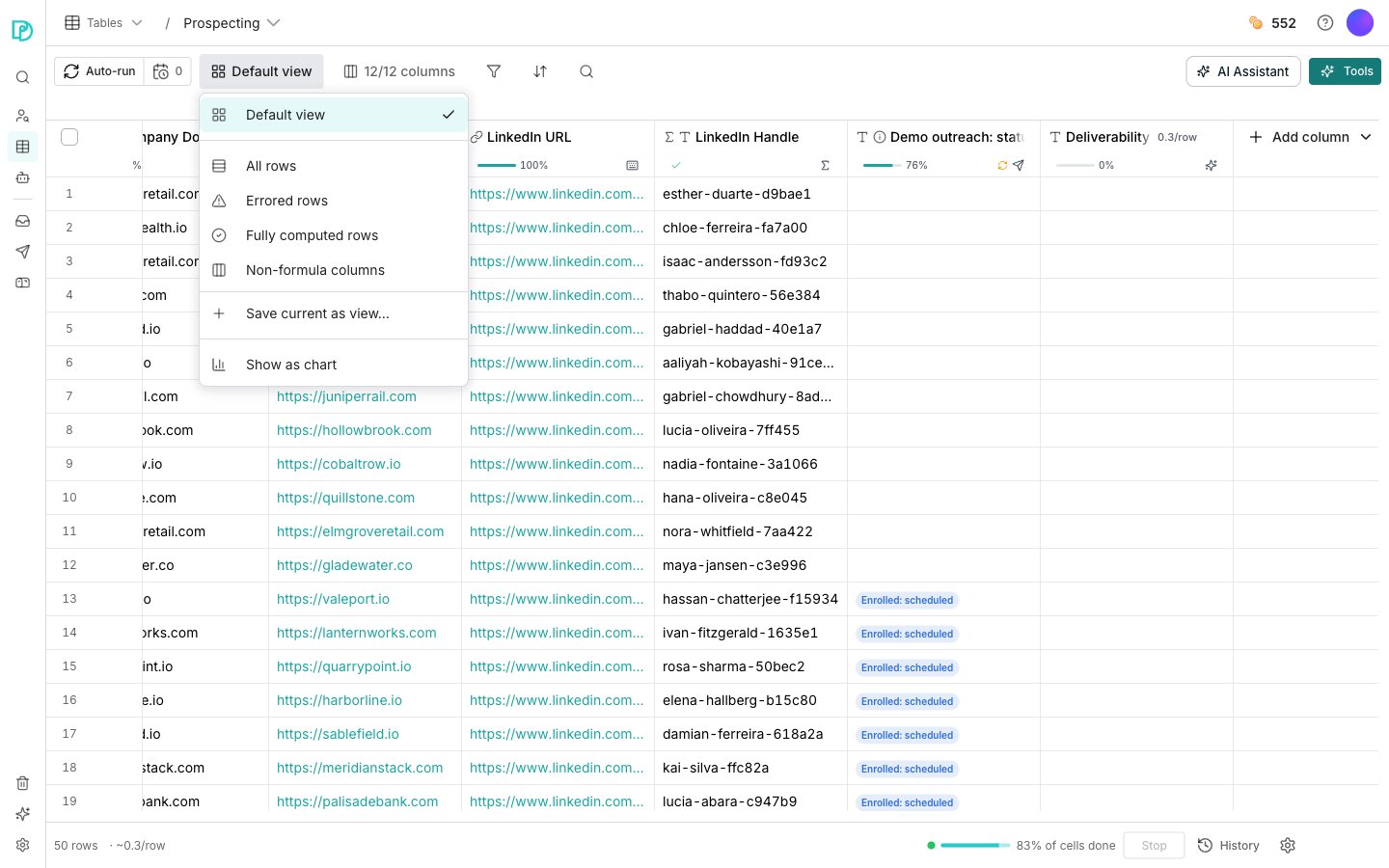
The view switcher sits in the toolbar, beside the run controls. **Default view** is the table as everyone shares it, with no sort and no filters.
Every table also ships with four built-in views:
* **All rows**: every row and column, with no filters applied
* **Errored rows**: rows where a cell failed to compute
* **Fully computed rows**: rows where nothing failed
* **Non-formula columns**: hide every computed column
## Save your own view
Adjust the sort, add filters, or hide the columns you do not need.
Open the view switcher and choose **Save current as view…**. Name it, and it appears in the list for everyone with access to the table.
## Narrow what you are looking at
**Filter**, **Sort** and **Search** sit beside the view switcher, along with a count of the columns on screen. **Filter** narrows rows to those matching a condition. **Sort** orders them by one or more columns.
**Search** steps through matching cells. None of the three changes your data, so it is safe to experiment.
## Good to know
Each saved view carries a menu on its row: **Rename view**, **Edit description**, **Duplicate view** and **Delete view**. Drag a view to move it in the list, and everyone on the table sees the same order.
A built-in view has no such menu. There is nothing on it to rename or delete.
While one of your saved views is active, the switcher offers to update it with your current setup. Choosing that writes the sort, filters and visible columns back onto the view for everyone.
**Show as chart**, at the foot of the switcher, plots the rows you are looking at instead of listing them. **Show as grid** puts them back. It is a way of presenting the current view, not a view you save.
The toolbar control reading something like 6/9 columns is where you show, hide and reorder columns. It shows the count at all times, so a hidden column is never a mystery.
Search reports where you are, for example 3 of 40. When more rows match than have loaded into the grid, it says how many it is stepping through.
## Next steps
Decide when a column fills its cells, and over which rows.
Push rows from this table into a connected system.
## Switch view
The view switcher sits in the toolbar, beside the run controls. **Default view** is the table as everyone shares it, with no sort and no filters.
Every table also ships with four built-in views:
* **All rows**: every row and column, with no filters applied
* **Errored rows**: rows where a cell failed to compute
* **Fully computed rows**: rows where nothing failed
* **Non-formula columns**: hide every computed column
## Save your own view
Adjust the sort, add filters, or hide the columns you do not need.
Open the view switcher and choose **Save current as view…**. Name it, and it appears in the list for everyone with access to the table.
## Narrow what you are looking at
**Filter**, **Sort** and **Search** sit beside the view switcher, along with a count of the columns on screen. **Filter** narrows rows to those matching a condition. **Sort** orders them by one or more columns.
**Search** steps through matching cells. None of the three changes your data, so it is safe to experiment.
## Good to know
Each saved view carries a menu on its row: **Rename view**, **Edit description**, **Duplicate view** and **Delete view**. Drag a view to move it in the list, and everyone on the table sees the same order.
A built-in view has no such menu. There is nothing on it to rename or delete.
While one of your saved views is active, the switcher offers to update it with your current setup. Choosing that writes the sort, filters and visible columns back onto the view for everyone.
**Show as chart**, at the foot of the switcher, plots the rows you are looking at instead of listing them. **Show as grid** puts them back. It is a way of presenting the current view, not a view you save.
The toolbar control reading something like 6/9 columns is where you show, hide and reorder columns. It shows the count at all times, so a hidden column is never a mystery.
Search reports where you are, for example 3 of 40. When more rows match than have loaded into the grid, it says how many it is stepping through.
## Next steps
Decide when a column fills its cells, and over which rows.
Push rows from this table into a connected system.