> ## Documentation Index
> Fetch the complete documentation index at: https://docs.getoneprofile.ai/llms.txt
> Use this file to discover all available pages before exploring further.
# Run columns
> Decide when a computed column fills its cells, run it over the rows you choose, and watch or stop what is running.
Computed columns fill their cells through runs: background work that spends credits. You choose when a run starts, which rows it covers, and when to stop it.
 ## Run a column yourself
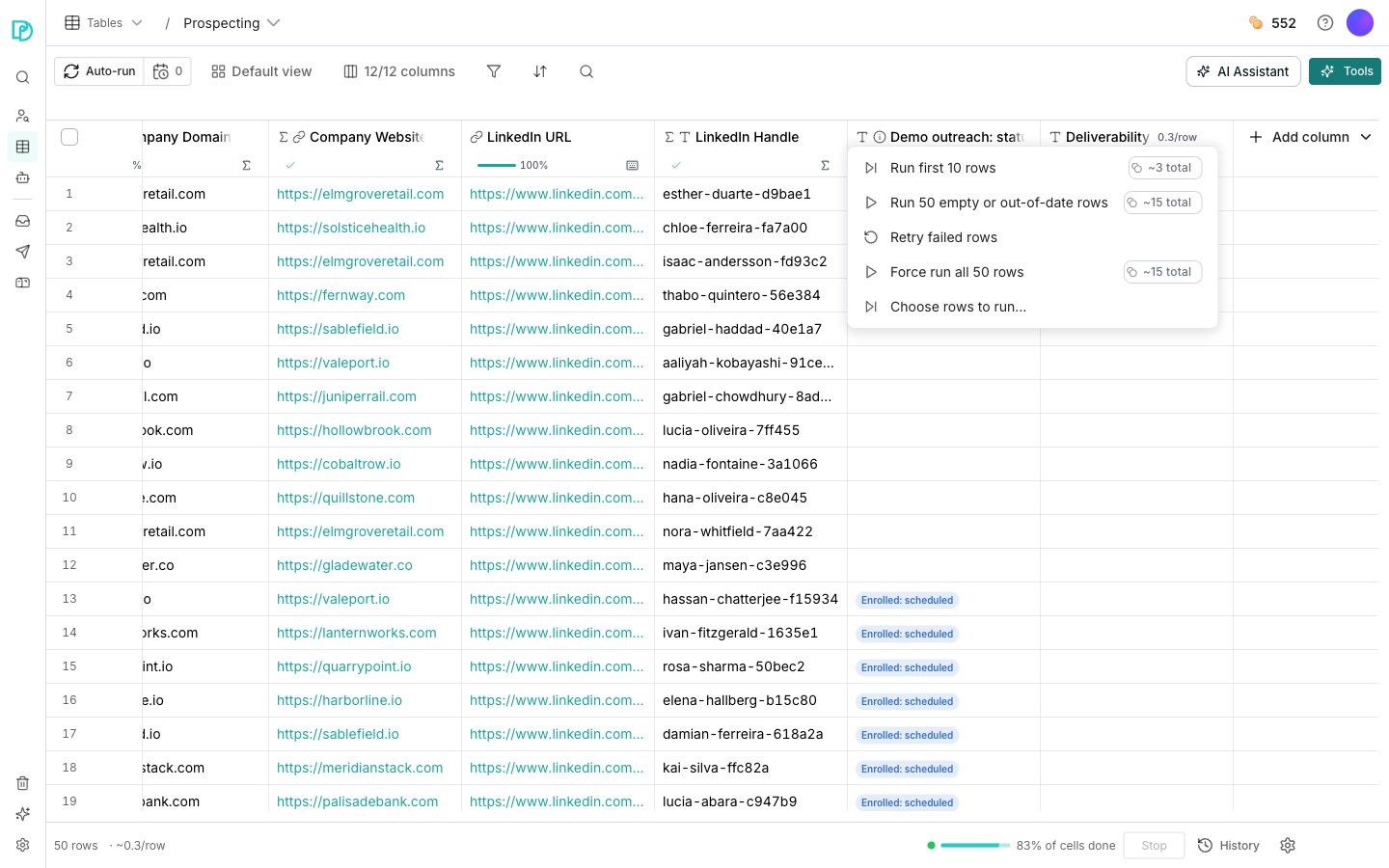
Open a column's header menu and choose **Run column**. An enrichment column offers:
* **Run first 10 rows**, a quick check before the whole table
* **Run empty or out-of-date rows**, to fill the gaps
* **Retry failed rows**, to try again where cells errored
* **Force run all rows**, which recomputes answers you already have
* **Choose rows to run…**, to pick rows yourself
The credits show on **Run first 10 rows**, **Run empty or out-of-date rows** and **Force run all rows**.
Tick rows in the grid and open **Actions** to run every enrichment column over just those rows. The cost shows beside it.
## Let columns run by themselves
**Auto-run** sits in the toolbar. Columns then run cells by themselves when their inputs change or rows arrive.
It sits under **Auto-run**. Only errored, empty or new cells run again.
## Watch and stop runs
The counter beside **Auto-run** shows how many cells the table's active runs still owe. Open it to see **Scheduled column runs**, each with its progress and a **Cancel** button.
**Stop all runs** at the foot of that panel halts every run on the table. The status bar under the grid carries its own **Stop**.
## Run only some rows
Open the column's editor and expand **Run conditions**.
Turn on **Only run some rows** and build the condition, for example where Employees is over 50.
## Good to know
Auto-run decides whether a run starts by itself. Keep existing results decides whether that run overwrites answers you have already paid for. A run then never re-spends credits on a cell that already succeeded.
With Auto-run off, a column fills its cells only when you run it.
An enrichment column's **Run conditions** section carries its own **Run automatically on new and changed rows** checkbox.
Auto-run is a standing spend, not a one-off. It re-spends credits every time inputs change or rows are added.
Clauses start with Where, and you join further ones with and or or. **Add condition** greys out at eight clauses. Or click **Generate**, describe the condition in words, and Oneprofile writes it for you.
Rows that do not match are cleared and marked Skipped, rather than left holding a stale answer from an earlier run.
Cells already computing finish. Everything the run had not started is skipped, and you can run the column again to pick them up.
**Stop** in the status bar is greyed out until there is something to stop.
Each scheduled run shows how many of its cells are done. Under that it names failures, cells where nothing was found, and cells that were skipped, counted apart from one another.
**Re-run every (hours)** sits at the bottom of a column's **Run conditions**. Set it and the column appears under **Recurring refreshes** in the run panel, alongside the scheduled runs. The editor shows what the standing spend works out to before you save.
A function column offers **Run all**, **Retry failed rows** and **Run first 10**. An export column has its own two, covered on [Export to a tool](/enrich/export-to-a-tool).
## Next steps
Change what you are looking at without touching the data.
Add a column that fills itself in from outside data.
## Run a column yourself
Open a column's header menu and choose **Run column**. An enrichment column offers:
* **Run first 10 rows**, a quick check before the whole table
* **Run empty or out-of-date rows**, to fill the gaps
* **Retry failed rows**, to try again where cells errored
* **Force run all rows**, which recomputes answers you already have
* **Choose rows to run…**, to pick rows yourself
The credits show on **Run first 10 rows**, **Run empty or out-of-date rows** and **Force run all rows**.
Tick rows in the grid and open **Actions** to run every enrichment column over just those rows. The cost shows beside it.
## Let columns run by themselves
**Auto-run** sits in the toolbar. Columns then run cells by themselves when their inputs change or rows arrive.
It sits under **Auto-run**. Only errored, empty or new cells run again.
## Watch and stop runs
The counter beside **Auto-run** shows how many cells the table's active runs still owe. Open it to see **Scheduled column runs**, each with its progress and a **Cancel** button.
**Stop all runs** at the foot of that panel halts every run on the table. The status bar under the grid carries its own **Stop**.
## Run only some rows
Open the column's editor and expand **Run conditions**.
Turn on **Only run some rows** and build the condition, for example where Employees is over 50.
## Good to know
Auto-run decides whether a run starts by itself. Keep existing results decides whether that run overwrites answers you have already paid for. A run then never re-spends credits on a cell that already succeeded.
With Auto-run off, a column fills its cells only when you run it.
An enrichment column's **Run conditions** section carries its own **Run automatically on new and changed rows** checkbox.
Auto-run is a standing spend, not a one-off. It re-spends credits every time inputs change or rows are added.
Clauses start with Where, and you join further ones with and or or. **Add condition** greys out at eight clauses. Or click **Generate**, describe the condition in words, and Oneprofile writes it for you.
Rows that do not match are cleared and marked Skipped, rather than left holding a stale answer from an earlier run.
Cells already computing finish. Everything the run had not started is skipped, and you can run the column again to pick them up.
**Stop** in the status bar is greyed out until there is something to stop.
Each scheduled run shows how many of its cells are done. Under that it names failures, cells where nothing was found, and cells that were skipped, counted apart from one another.
**Re-run every (hours)** sits at the bottom of a column's **Run conditions**. Set it and the column appears under **Recurring refreshes** in the run panel, alongside the scheduled runs. The editor shows what the standing spend works out to before you save.
A function column offers **Run all**, **Retry failed rows** and **Run first 10**. An export column has its own two, covered on [Export to a tool](/enrich/export-to-a-tool).
## Next steps
Change what you are looking at without touching the data.
Add a column that fills itself in from outside data.