> ## Documentation Index
> Fetch the complete documentation index at: https://docs.getoneprofile.ai/llms.txt
> Use this file to discover all available pages before exploring further.
# Export to a tool
> Push rows from a table into a connected tool, and choose whether each row creates a record, updates one, or both.
An export column pushes rows from your table into a tool you have connected, such as a CRM. You choose which object each row becomes, how it is matched, and which fields it writes.
 ## Set up an export
Click **Tools** in the toolbar, then the **Import & export** tab. Click your connection under **Connected systems** and choose to export rows to it.
Pick **Create records**, **Update records** or **Create or update records**. Each one is described below.
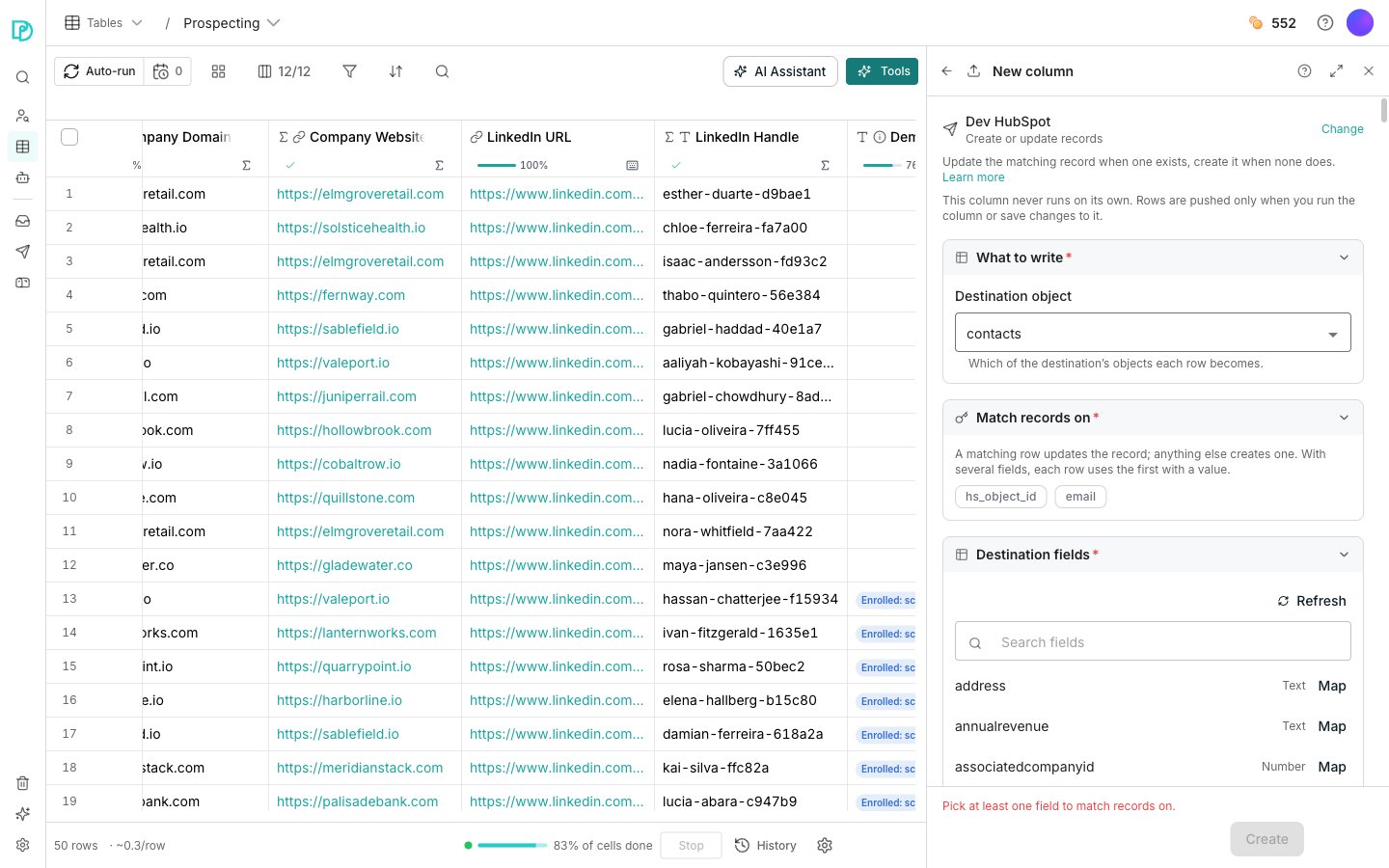
In **What to write**, pick the **Destination object** each row becomes. Oneprofile asks the connected tool what it holds.
The card below it lists the fields the tool can match on. Pick one or more, and point each at the column holding that value.
In **Destination fields**, click **Map** beside a field. Type a value into it, or type `/` to insert a column.
In **Preview**, click **Test on these rows**. It asks the tool what a real run would do and writes nothing, so click **Create** once the answers look right.
## Create records
Adds new records only. A row already written once is skipped, never duplicated.
Its match card is **Prevent duplicates by**. Map at least one field there, so a row already at the destination can be recognised before anything is created.
## Update records
Changes existing records only. A row with no match at the destination is skipped.
Its match card is **Find the record by**. Map at least one field there. No match means no write, so nothing new is ever created by this action.
## Create or update records
Updates the matching record when one exists, and creates it when none does.
Its match card is **Match records on**. Map at least one field there. A row that matches updates its record, and a row that matches nothing creates one.
## Good to know
When you pick more than one match field, each row uses the first of them it has a value for. It is not a stricter match built from all of them together.
Rows are pushed only when you run the column or save changes to it. Nothing goes out because a cell changed.
Run it from the column's header menu. An export column offers **Push all rows** and **Retry failed rows**, and the retry never re-pushes rows that already went through.
**When a record matches** holds **Write mode**, which offers three settings.
* **Change mapped fields only** leaves the fields you have not mapped exactly as they are, and is the recommended setting
* **Replace the whole record** clears them
* **Fill empty fields only** leaves a field alone when it already has a value
**Skip empty values** and **Convert value types** sit under it. This card does not appear for **Create records**, which has no existing record to reconcile with.
A field the tool will not accept writes for is marked **Read only** and cannot be mapped. **Refresh** re-asks the tool for its field list. The browse button under **Search fields** carries the field count, and shows the ones you have not mapped yet.
**Sandbox** offers **Create sandbox copy**, which opens a copy of the table in a new tab. Nothing in the copy merges back, so it is safe to push from.
**Batching** offers **Send rows in batches**, which writes several rows per request instead of one at a time.
A large burst of writes can overwhelm automations and webhooks connected downstream of the tool. Batched runs also report each row as pushed, rather than as created or updated.
**Reliability** holds **Retry failed rows** with a **Max retries** count, a **Timeout** in seconds, and a **Rate limit** in requests per minute. The defaults suit most destinations, and the tool's own answer is honoured whatever you set.
The destination picker says there are no connected destinations and offers **Connect an integration**, which opens the integrations page in a new tab. Your half-built column is still there when you come back.
## Next steps
Connect the tool you want to push rows into.
Decide when a column runs, and over which rows.
## Set up an export
Click **Tools** in the toolbar, then the **Import & export** tab. Click your connection under **Connected systems** and choose to export rows to it.
Pick **Create records**, **Update records** or **Create or update records**. Each one is described below.
In **What to write**, pick the **Destination object** each row becomes. Oneprofile asks the connected tool what it holds.
The card below it lists the fields the tool can match on. Pick one or more, and point each at the column holding that value.
In **Destination fields**, click **Map** beside a field. Type a value into it, or type `/` to insert a column.
In **Preview**, click **Test on these rows**. It asks the tool what a real run would do and writes nothing, so click **Create** once the answers look right.
## Create records
Adds new records only. A row already written once is skipped, never duplicated.
Its match card is **Prevent duplicates by**. Map at least one field there, so a row already at the destination can be recognised before anything is created.
## Update records
Changes existing records only. A row with no match at the destination is skipped.
Its match card is **Find the record by**. Map at least one field there. No match means no write, so nothing new is ever created by this action.
## Create or update records
Updates the matching record when one exists, and creates it when none does.
Its match card is **Match records on**. Map at least one field there. A row that matches updates its record, and a row that matches nothing creates one.
## Good to know
When you pick more than one match field, each row uses the first of them it has a value for. It is not a stricter match built from all of them together.
Rows are pushed only when you run the column or save changes to it. Nothing goes out because a cell changed.
Run it from the column's header menu. An export column offers **Push all rows** and **Retry failed rows**, and the retry never re-pushes rows that already went through.
**When a record matches** holds **Write mode**, which offers three settings.
* **Change mapped fields only** leaves the fields you have not mapped exactly as they are, and is the recommended setting
* **Replace the whole record** clears them
* **Fill empty fields only** leaves a field alone when it already has a value
**Skip empty values** and **Convert value types** sit under it. This card does not appear for **Create records**, which has no existing record to reconcile with.
A field the tool will not accept writes for is marked **Read only** and cannot be mapped. **Refresh** re-asks the tool for its field list. The browse button under **Search fields** carries the field count, and shows the ones you have not mapped yet.
**Sandbox** offers **Create sandbox copy**, which opens a copy of the table in a new tab. Nothing in the copy merges back, so it is safe to push from.
**Batching** offers **Send rows in batches**, which writes several rows per request instead of one at a time.
A large burst of writes can overwhelm automations and webhooks connected downstream of the tool. Batched runs also report each row as pushed, rather than as created or updated.
**Reliability** holds **Retry failed rows** with a **Max retries** count, a **Timeout** in seconds, and a **Rate limit** in requests per minute. The defaults suit most destinations, and the tool's own answer is honoured whatever you set.
The destination picker says there are no connected destinations and offers **Connect an integration**, which opens the integrations page in a new tab. Your half-built column is still there when you come back.
## Next steps
Connect the tool you want to push rows into.
Decide when a column runs, and over which rows.