> ## Documentation Index
> Fetch the complete documentation index at: https://docs.getoneprofile.ai/llms.txt
> Use this file to discover all available pages before exploring further.
# Give an agent web research and context
> Let an agent read the web, and give it your business context so its answers sound like your company.
Turn on web research and an agent can search and read pages before it answers. Business context folds your own company facts into every run, so its answers sound like your company wrote them.
 ## Turn on web research
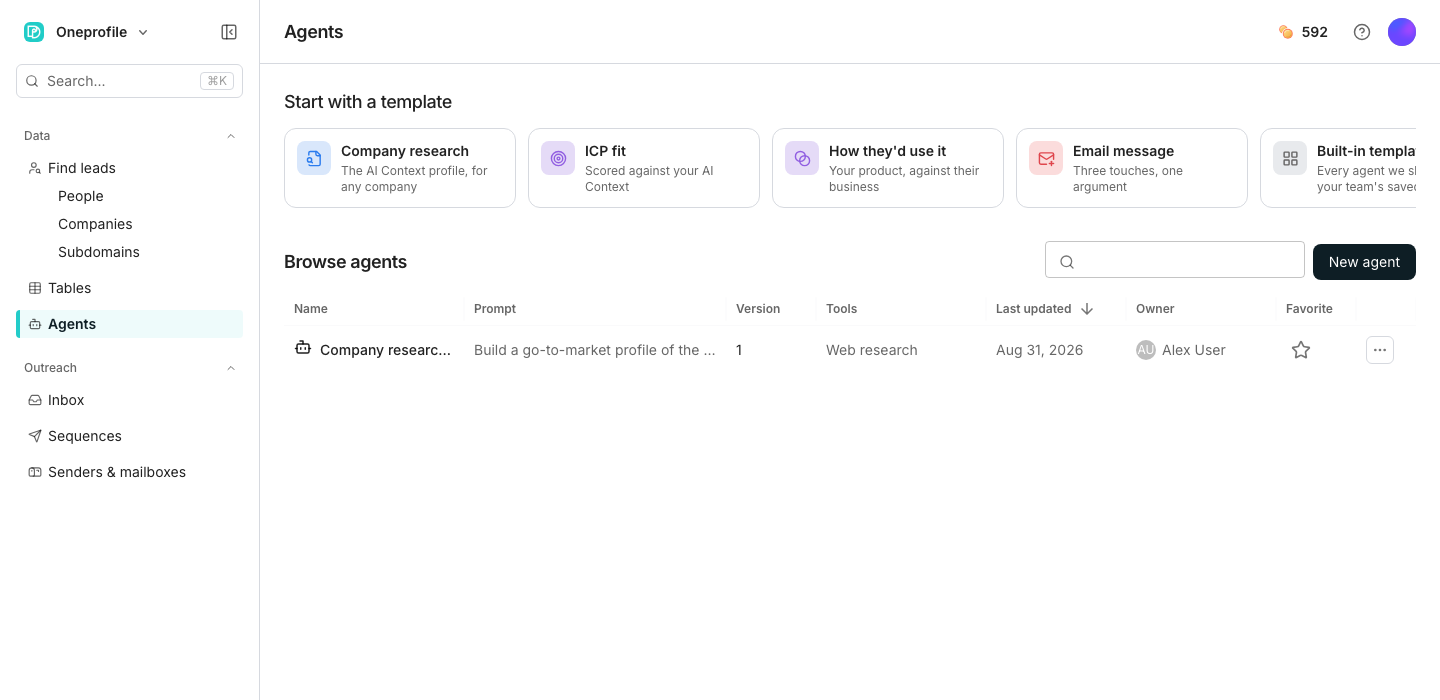
In **Tools**, turn on **Web research**. A credit chip appears beside it only when turning it on adds to the cost.
A run with web research on can search and read pages before it answers. That takes longer, and can cost more per row than reasoning over what you gave it.
## Give it your business context
Business context is one AI profile for the workspace: your company, your ideal customer, your buyer personas, and what marks good timing. An agent can lean on all of it, or point at just one part.
In **Tools**, turn on **Business context** to fold your AI business context into every run.
Type an @ in the prompt and choose a section, such as **Ideal customer profile**, to reference just that part.
## Good to know
Your prompt already references your business context, so the switch is held on. Take the mention out of the prompt to release it.
**Business context** for the whole profile, or **Company description**, **Ideal customer profile**, **Ideal buyer personas** and **Interest signals** for one part of it.
Yes. An added server routes the run through the same research loop at its own rate. That sits between having no research at all and having web research on.
On the [Business context](/settings/business-context) page, where each section has its own field and helper text.
## Next steps
Write the company facts an agent can fold into its answers.
See how research and effort together move the price.
## Turn on web research
In **Tools**, turn on **Web research**. A credit chip appears beside it only when turning it on adds to the cost.
A run with web research on can search and read pages before it answers. That takes longer, and can cost more per row than reasoning over what you gave it.
## Give it your business context
Business context is one AI profile for the workspace: your company, your ideal customer, your buyer personas, and what marks good timing. An agent can lean on all of it, or point at just one part.
In **Tools**, turn on **Business context** to fold your AI business context into every run.
Type an @ in the prompt and choose a section, such as **Ideal customer profile**, to reference just that part.
## Good to know
Your prompt already references your business context, so the switch is held on. Take the mention out of the prompt to release it.
**Business context** for the whole profile, or **Company description**, **Ideal customer profile**, **Ideal buyer personas** and **Interest signals** for one part of it.
Yes. An added server routes the run through the same research loop at its own rate. That sits between having no research at all and having web research on.
On the [Business context](/settings/business-context) page, where each section has its own field and helper text.
## Next steps
Write the company facts an agent can fold into its answers.
See how research and effort together move the price.