> ## Documentation Index
> Fetch the complete documentation index at: https://docs.getoneprofile.ai/llms.txt
> Use this file to discover all available pages before exploring further.
# Built-in agents
> The agents that ship ready to run, what each one is for, and how to keep an editable copy of one.
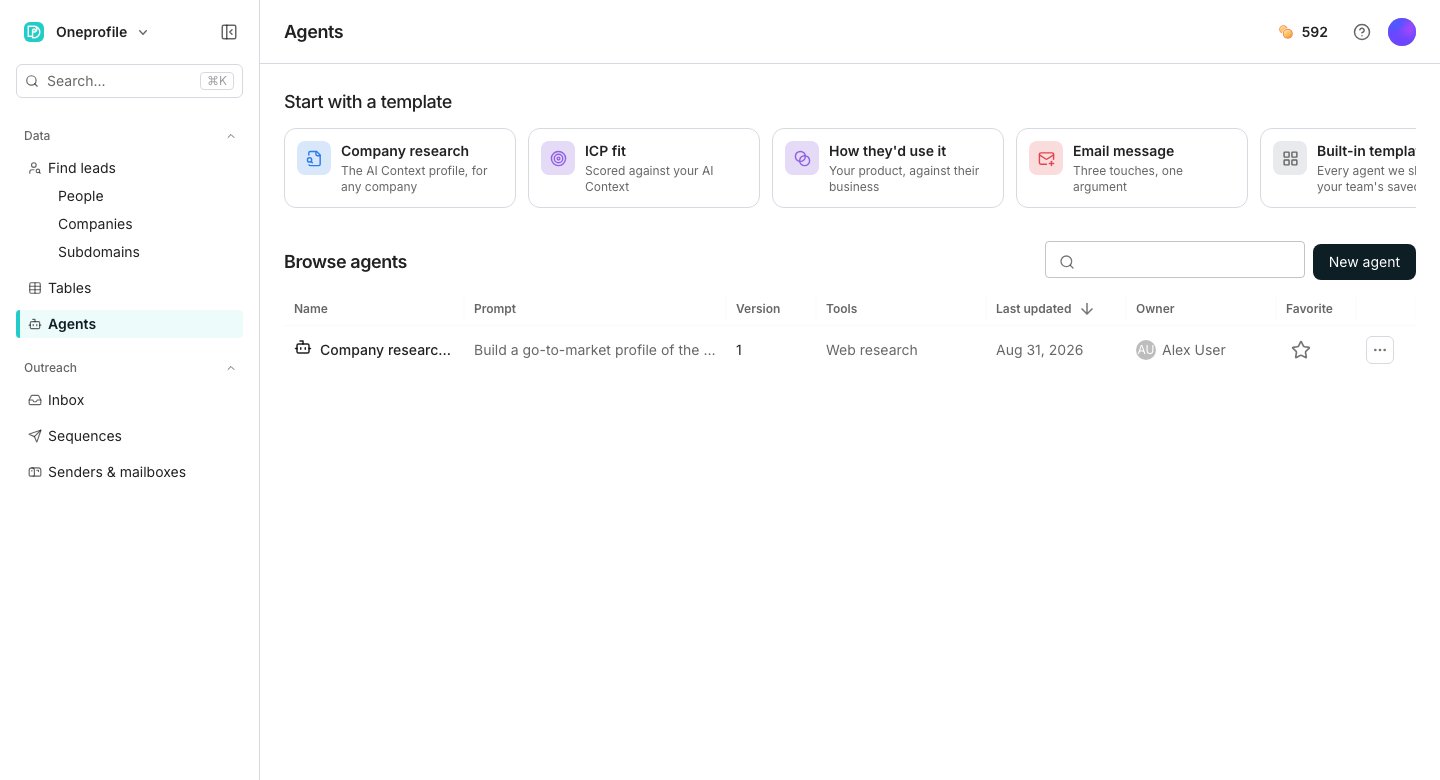
The built-in templates gallery holds every agent Oneprofile ships, ready to run as is. Add one straight to a column, or apply it in the editor and keep a copy you can rewrite.
 ## Browse what ships built in
Click **Tools**, open the **Agent** tab, and scroll past **Your agents** to **Built-in agents**.
Click **Built-in templates** to open the full gallery, or pick a card under **Start with a template**.
## Run one as is
Deploying straight from **Built-in agents** adds a column whose prompt, effort and web research are built in and configured by Oneprofile. You only choose which columns feed its inputs, from the **Inputs** section of that column's editor.
## Keep a copy to make it your own
Applying a template from the gallery copies its whole setup: the prompt, its inputs, effort, web research, business context and output fields. Save it and it becomes a new agent under **Browse agents**, yours to edit freely.
Click **Built-in templates**.
Select a template on the left to read its prompt on the right, with each input shown as a chip.
Click **Apply template**, then click **Save** in the editor. The original template is untouched.
## Good to know
Its curated description, and an internal rulebook that only governs how a built-in run itself is priced and refunded. Oneprofile writes your copy a fresh description once you save it.
No. A column deployed straight from **Built-in agents** keeps its prompt, effort and research fixed. Only which columns feed its inputs is yours to change there.
No. A built-in's icon is a token for the catalog and the picker. Your copy starts with the default agent icon until you set your own.
Yes, listed under **Saved by your team**, below the built-ins.
## Next steps
Write a prompt from a blank page instead of a template.
See how a deployed agent column behaves on a table.
## Browse what ships built in
Click **Tools**, open the **Agent** tab, and scroll past **Your agents** to **Built-in agents**.
Click **Built-in templates** to open the full gallery, or pick a card under **Start with a template**.
## Run one as is
Deploying straight from **Built-in agents** adds a column whose prompt, effort and web research are built in and configured by Oneprofile. You only choose which columns feed its inputs, from the **Inputs** section of that column's editor.
## Keep a copy to make it your own
Applying a template from the gallery copies its whole setup: the prompt, its inputs, effort, web research, business context and output fields. Save it and it becomes a new agent under **Browse agents**, yours to edit freely.
Click **Built-in templates**.
Select a template on the left to read its prompt on the right, with each input shown as a chip.
Click **Apply template**, then click **Save** in the editor. The original template is untouched.
## Good to know
Its curated description, and an internal rulebook that only governs how a built-in run itself is priced and refunded. Oneprofile writes your copy a fresh description once you save it.
No. A column deployed straight from **Built-in agents** keeps its prompt, effort and research fixed. Only which columns feed its inputs is yours to change there.
No. A built-in's icon is a token for the catalog and the picker. Your copy starts with the default agent icon until you set your own.
Yes, listed under **Saved by your team**, below the built-ins.
## Next steps
Write a prompt from a blank page instead of a template.
See how a deployed agent column behaves on a table.