> ## Documentation Index
> Fetch the complete documentation index at: https://docs.getoneprofile.ai/llms.txt
> Use this file to discover all available pages before exploring further.
# Build an agent
> Start from a template or set it up by hand, then write a prompt that survives a messy row.
An agent is a prompt that runs once per row, deciding what that row needs. Start it two different ways, then spend your effort on the part that matters: the prompt itself.
 ## Start an agent
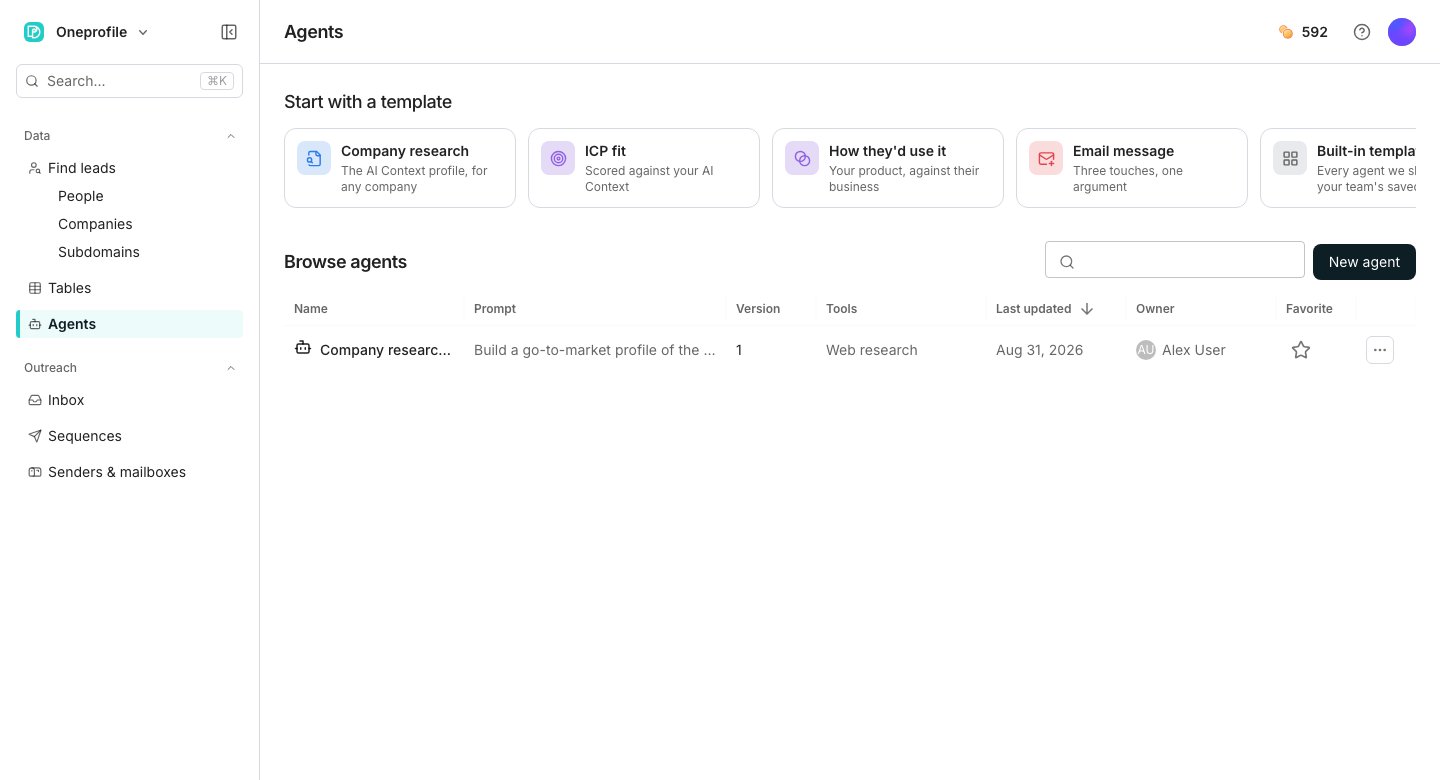
On the Agents page, pick a card under **Start with a template**, or open **Built-in templates** to browse everything Oneprofile ships. Applying one copies the whole setup into the editor.
Click **New agent** for a blank prompt and build the agent by hand.
## Write a prompt that survives a messy row
A row can arrive missing the field your prompt expects, or with a value that fits none of the cases you wrote for. Say what counts as a right answer. Say what to do when a row has nothing to give it, rather than leaving the agent to guess.
Type a slash where the value belongs, or click one of the chips listed under **Inputs** below the prompt.
Type an @ in the prompt to fold in a section of your business context, such as your ideal customer profile.
Highlight any passage and click **Rewrite selection** to have just that part revised.
## Keep the prompt current
Open the assistant anytime, even on an agent you wrote months ago, and ask for a change in plain language. Three common requests sit ready to click: **Make it stricter**, **Change what it returns** and **Explain its answers**.
## Configure the agent
The Configuration panel holds six sections: **Effort**, **Inputs**, **Outputs**, **Tools**, **MCP servers** and **Feedback**. Effort sets how hard the agent works and what it costs. Inputs and outputs shape what goes in and comes out, and Tools turns on web research or your business context.
MCP servers extend what the agent can reach, and Feedback collects what people thought once ratings start coming in.
See [Agent inputs and outputs](/agents/agent-inputs-and-outputs) and [Choose an effort level](/agents/choose-an-effort-level) for the detail behind each one.
## Good to know
Yes. Open **Built-in templates**, apply one, then click **Save**. It becomes a new agent under **Browse agents** that you own and can rewrite freely.
The reference stays in the prompt, painted as broken, until you restore the input or remove the reference by hand. Saving is blocked until then, and nothing is rewritten for you.
Save needs a name and a prompt, plus at least one input or **Use the whole row** turned on. A broken input reference or an invalid output schema blocks it too.
Columns built from it keep the values they already hold, but stop returning new answers. Nothing already in the table is removed.
## Next steps
What each row hands the agent, and how its answer becomes columns.
Weigh cost against depth before you pick one.
## Start an agent
On the Agents page, pick a card under **Start with a template**, or open **Built-in templates** to browse everything Oneprofile ships. Applying one copies the whole setup into the editor.
Click **New agent** for a blank prompt and build the agent by hand.
## Write a prompt that survives a messy row
A row can arrive missing the field your prompt expects, or with a value that fits none of the cases you wrote for. Say what counts as a right answer. Say what to do when a row has nothing to give it, rather than leaving the agent to guess.
Type a slash where the value belongs, or click one of the chips listed under **Inputs** below the prompt.
Type an @ in the prompt to fold in a section of your business context, such as your ideal customer profile.
Highlight any passage and click **Rewrite selection** to have just that part revised.
## Keep the prompt current
Open the assistant anytime, even on an agent you wrote months ago, and ask for a change in plain language. Three common requests sit ready to click: **Make it stricter**, **Change what it returns** and **Explain its answers**.
## Configure the agent
The Configuration panel holds six sections: **Effort**, **Inputs**, **Outputs**, **Tools**, **MCP servers** and **Feedback**. Effort sets how hard the agent works and what it costs. Inputs and outputs shape what goes in and comes out, and Tools turns on web research or your business context.
MCP servers extend what the agent can reach, and Feedback collects what people thought once ratings start coming in.
See [Agent inputs and outputs](/agents/agent-inputs-and-outputs) and [Choose an effort level](/agents/choose-an-effort-level) for the detail behind each one.
## Good to know
Yes. Open **Built-in templates**, apply one, then click **Save**. It becomes a new agent under **Browse agents** that you own and can rewrite freely.
The reference stays in the prompt, painted as broken, until you restore the input or remove the reference by hand. Saving is blocked until then, and nothing is rewritten for you.
Save needs a name and a prompt, plus at least one input or **Use the whole row** turned on. A broken input reference or an invalid output schema blocks it too.
Columns built from it keep the values they already hold, but stop returning new answers. Nothing already in the table is removed.
## Next steps
What each row hands the agent, and how its answer becomes columns.
Weigh cost against depth before you pick one.