> ## Documentation Index
> Fetch the complete documentation index at: https://docs.getoneprofile.ai/llms.txt
> Use this file to discover all available pages before exploring further.
# Agent inputs and outputs
> Choose what each row hands the agent, define the fields it returns, and see each field become its own column.
An agent reads either the fields you add as inputs, or the entire row when its prompt names none. What it hands back is just as deliberate: name each output field and it becomes its own column once you deploy it.
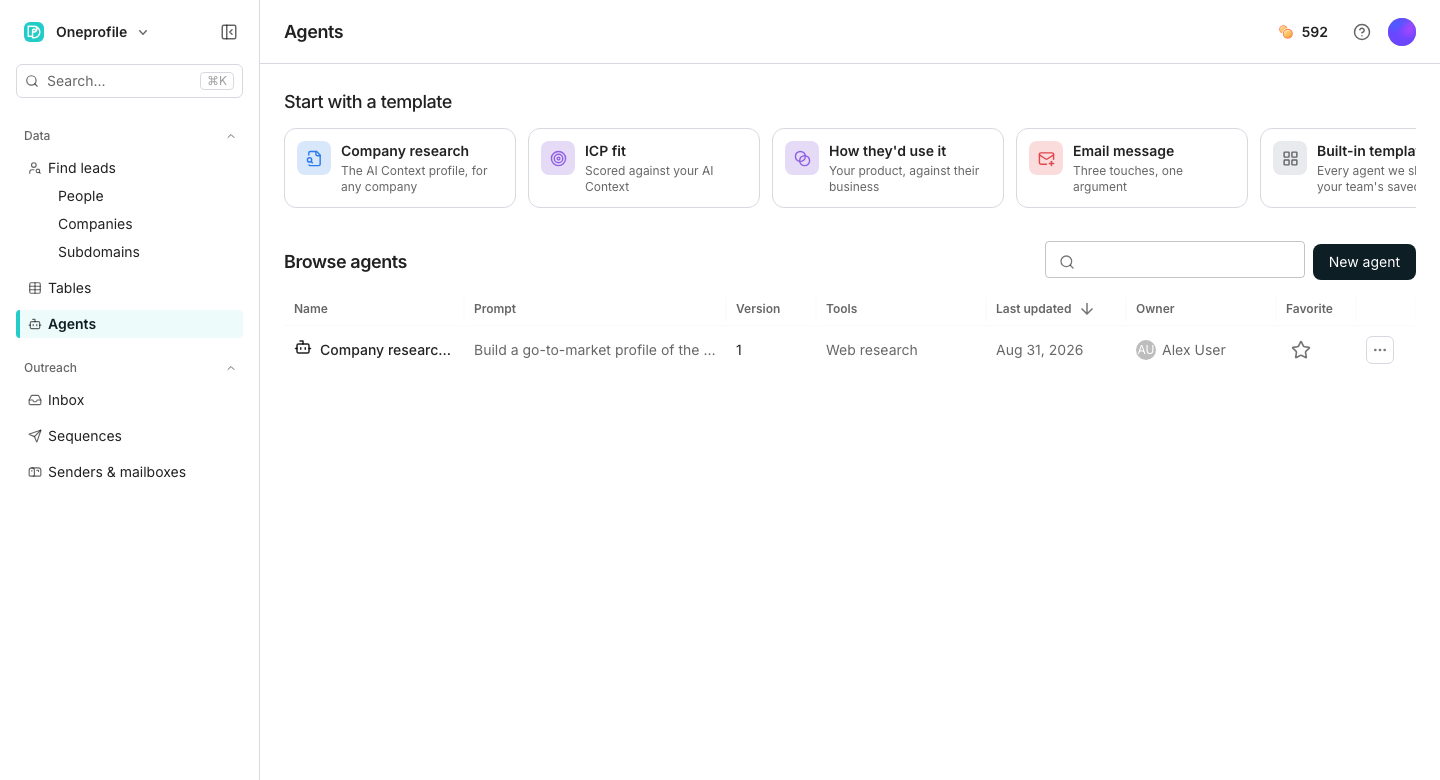 ## Add an input
In the Configuration panel's **Inputs** section, click **Add input** and name it. Or click **Suggest inputs from prompt** to have Oneprofile read the prompt and add what it already asks for.
Turn on **Use the whole row** to hand the agent every column rather than naming fields one at a time.
## Shape what it returns
The **Outputs** section declares the fields an answer is made of, either as repeatable named fields or, behind an advanced toggle, a raw schema.
Click **Add output**, give it a name and a type, then click **Add description** if it needs more than a name to explain it.
Click **Suggest outputs from prompt** to have Oneprofile propose fields from what the prompt already promises to return.
Switch from **Fields** to **JSON Schema** to declare the output contract directly, checked against every strict-mode rule on save.
## See each field become a column
Click **Add to table**, choose a table, then map each input to a column. Click **Match inputs by name** to fill in the obvious ones.
An agent with one output field adds a single column. One with several folds them into a group behind a parent column, and you can rename or skip any field before adding it.
## Good to know
Yes. Deploying is a per column choice. Mapping columns on one table and handing over the whole row on another both work, as long as the prompt names no input.
Only when the prompt does not reference any input by name. Otherwise every input needs a column mapped to it, so the dialog maps rather than hands over the row.
The dialog warns you and runs will skip a row until that column is filled in or you remap it to another one.
Yes, by dragging the handle beside a field or using the arrow keys once it has focus. Order matters: it decides the order the fields fan out into columns.
Renaming is free text in the deploy dialog, so give each one a distinct name before adding the column. A collision with a name already on the table is refused.
## Next steps
Start an agent and write the prompt these inputs and outputs belong to.
See how what an agent reads and returns affects the price.
## Add an input
In the Configuration panel's **Inputs** section, click **Add input** and name it. Or click **Suggest inputs from prompt** to have Oneprofile read the prompt and add what it already asks for.
Turn on **Use the whole row** to hand the agent every column rather than naming fields one at a time.
## Shape what it returns
The **Outputs** section declares the fields an answer is made of, either as repeatable named fields or, behind an advanced toggle, a raw schema.
Click **Add output**, give it a name and a type, then click **Add description** if it needs more than a name to explain it.
Click **Suggest outputs from prompt** to have Oneprofile propose fields from what the prompt already promises to return.
Switch from **Fields** to **JSON Schema** to declare the output contract directly, checked against every strict-mode rule on save.
## See each field become a column
Click **Add to table**, choose a table, then map each input to a column. Click **Match inputs by name** to fill in the obvious ones.
An agent with one output field adds a single column. One with several folds them into a group behind a parent column, and you can rename or skip any field before adding it.
## Good to know
Yes. Deploying is a per column choice. Mapping columns on one table and handing over the whole row on another both work, as long as the prompt names no input.
Only when the prompt does not reference any input by name. Otherwise every input needs a column mapped to it, so the dialog maps rather than hands over the row.
The dialog warns you and runs will skip a row until that column is filled in or you remap it to another one.
Yes, by dragging the handle beside a field or using the arrow keys once it has focus. Order matters: it decides the order the fields fan out into columns.
Renaming is free text in the deploy dialog, so give each one a distinct name before adding the column. A collision with a name already on the table is refused.
## Next steps
Start an agent and write the prompt these inputs and outputs belong to.
See how what an agent reads and returns affects the price.